Rules can be created and applied to specific systems on the Config Rules tab. Rules contain SQL and can be enabled or disabled, added or removed. Once a day, SysTrack runs the enabled rules and assigns the configuration of each rule to the systems that its SQL query returns.
The Config Rules tab is on the Assignments page (Configure > System Configuration > Assignments).
Watch a quick overview or read the detailed information below.
Create a Configuration Rule
Click the lock icon on the top right of the page to unlock SysTrack Configure for editing.
Click the + in the upper left. The SQL dialog appears, enabling you to enter custom SQL for your configuration rule or select a predefined template.
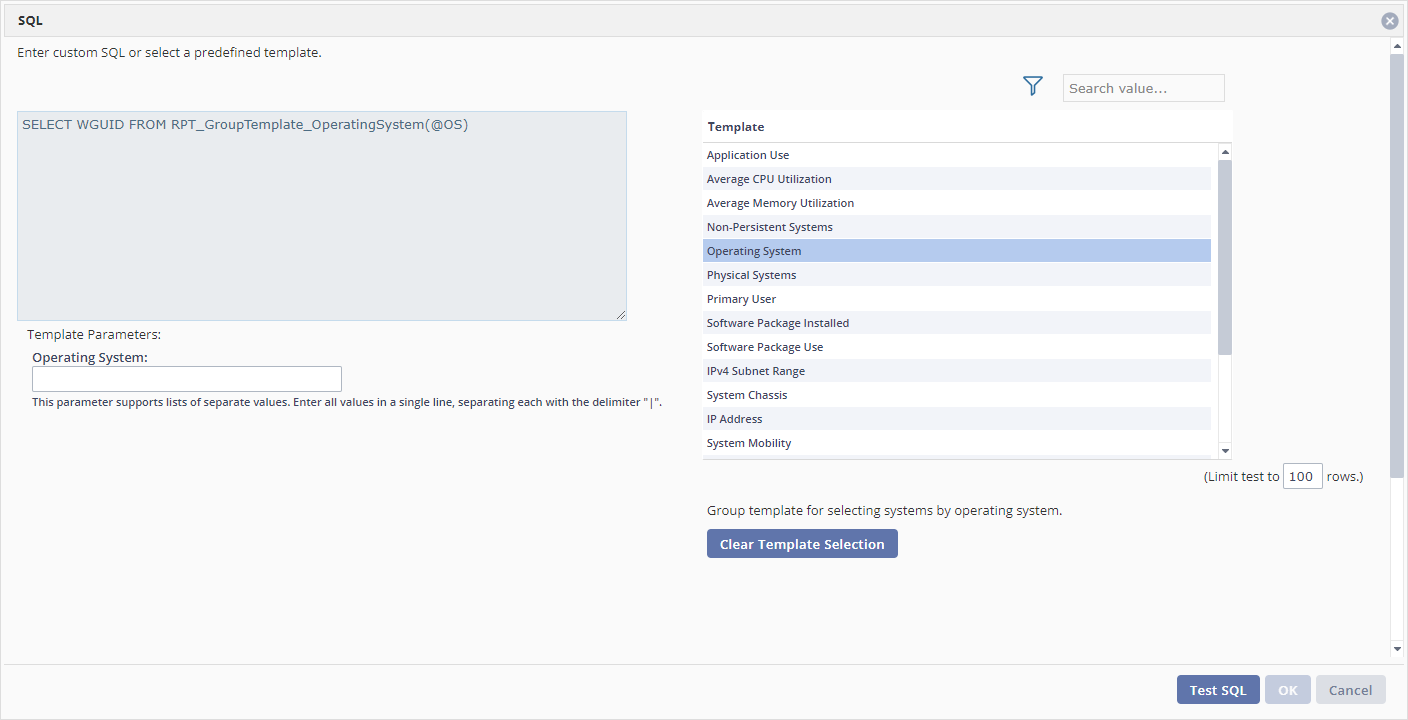
Enter your custom SQL or select a template from the list on the right to show the SQL of that template. Template parameters may support a list of values. Enter them in the field provided, separating values with a vertical bar | delimiter. You can clear the SQL of the selected template by clicking the Clear Template Selection button. To select the systems of a group, use the SQL pattern in Groups.
To check the SQL, click Test SQL. The Test Group SQL window lists the systems that the query returns. The SQL must be valid.
When satisfied with your SQL, click OK to save it as a Config Rule. The new rule is added to the current list.

For each Config Rule listed, you can use the Enable checkbox to enable or disable the rule, and use the Configuration drop-down list to select or change the designated configuration. A new rule starts with Enable selected and Inheritable cleared.
NOTE: The Inheritable checkbox determines whether the configuration specified in the rule will be inherited in SysTrack Deploy (on-premises only).
To delete a rule, select it and click the X in the upper left.
WARNING: SysTrack deletes the rule and its SQL query without a confirmation. After you click Save Changes, you cannot restore the rule. To keep the rule, leave the page without saving.
When satisfied with your Config Rules, click the Save Changes button in the upper right.
Click the lock icon on the top right of the page to end your editing session and lock SysTrack Configure.
Order of Config Rules
SysTrack checks the rules on the Config Rules tab from top to bottom. When a system matches more than one enabled rule, the lowest matching rule in the list sets the configuration of the system. To change the order, drag the rules up or down in the list, and click Save Changes.
When Config Rules Run
Config rules run once a day. In SysTrack cloud, they run at most once per UTC day. In SysTrack On-Premises, they run every 24 hours, and also when Configure settings change. On a pooled desktop, the rules also run when a user logs on.
After a rule assigns a configuration, the system applies it during routine processing. To apply it now, run Read Configuration, as described in Assignments Overview.
Troubleshooting
A Config Rule Does Not Assign Its Configuration
When a system does not get the configuration of a config rule, check these items:
On the Config Rules tab, make sure that the Enable checkbox of the rule is selected.
Make sure that the system is in the results of the SQL query of the rule. Test SQL in the SQL dialog lists the systems that the query returns.
Make sure that no lower enabled rule in the list also matches the system. The lowest matching rule sets the configuration.
Wait up to 24 hours. Config rules run once a day, and the system then applies the configuration during routine processing. To apply the configuration now, run Read Configuration, as described in Assignments Overview.
For more checks, see Confirm Config Rules are Enabled.
New Systems Get the Wrong Configuration from a Config Rule
A config rule that selects systems by group membership or by inventory data, such as the agent version, can miss new or changed systems for up to 24 hours. SysTrack updates this data once a day. For the details and for faster options, see New Systems Assigned to the Wrong Configuration When Using RPT_SYSTEM_GROUPS and Dynamic Group Creation Issue.