The Tools page in Prevent enables you to perform an action on a group of systems. In Prevent, go to Operations > Tools. If you do not see the Operations pages, move the detail slider at the bottom of the menu to Advanced.
You need the Run Tools Manually permission (Prevent). To run automations and collection extensions, you also need the Resolve permission Run Tools Manually.
In the drop-down list at the top of the screen, select a group. No group is selected by default, and the systems table stays empty until you select one.
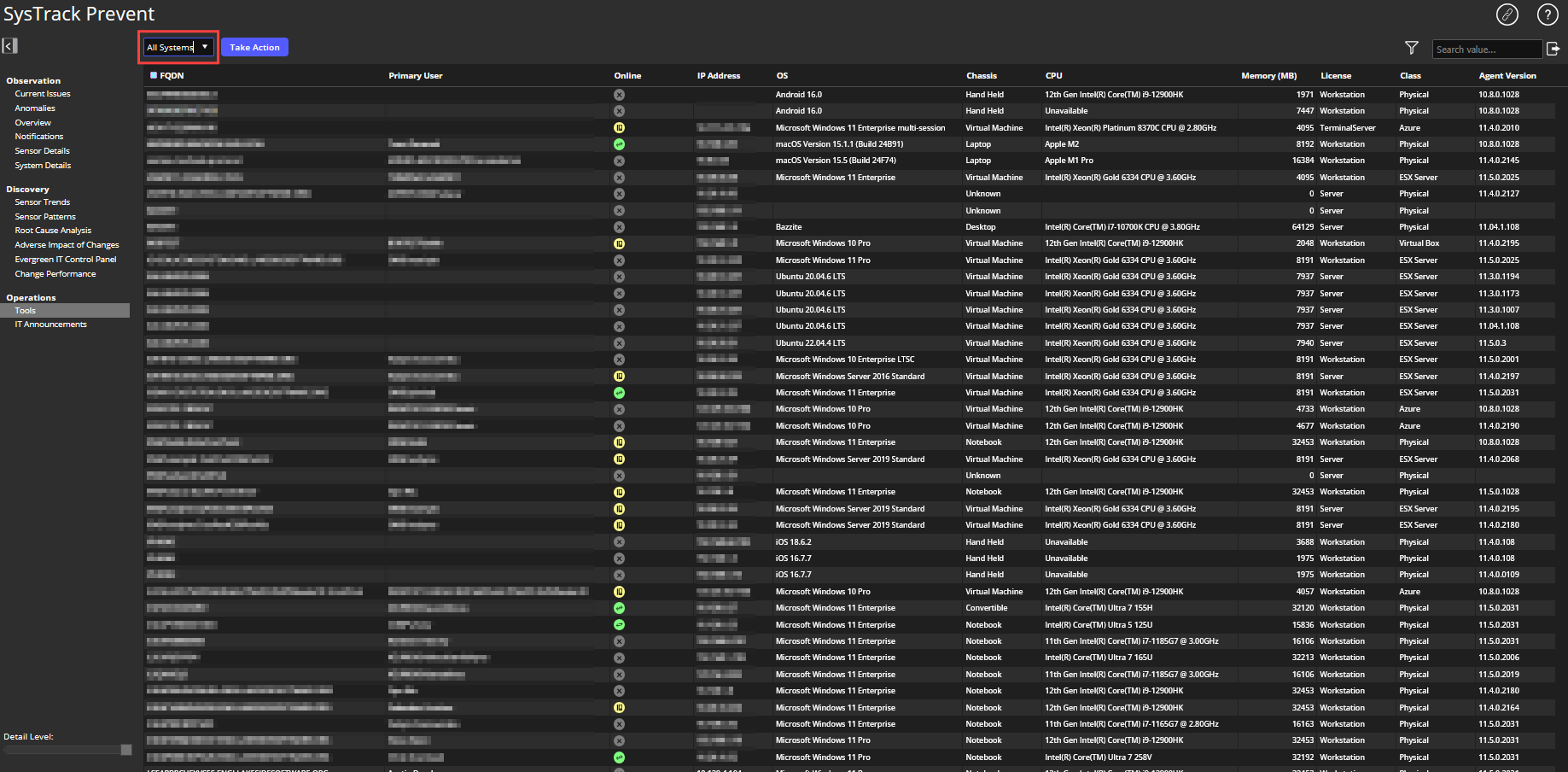
The systems table shows FQDN, Primary User, Online, IP Address, OS, Chassis, CPU, Memory, License, Class, and Agent Version. Click Export to save the table.
(Optional) Filter to the systems to affect in the Filter field. The resulting systems that display in the table are all the systems that will be affected.
TIP: You can only perform actions on systems that are connected to the master system. If a system is not currently connected to the master, it will not receive the action.
Click Take Action. The Select Tool dialog box displays. Take Action is unavailable when the table is empty.
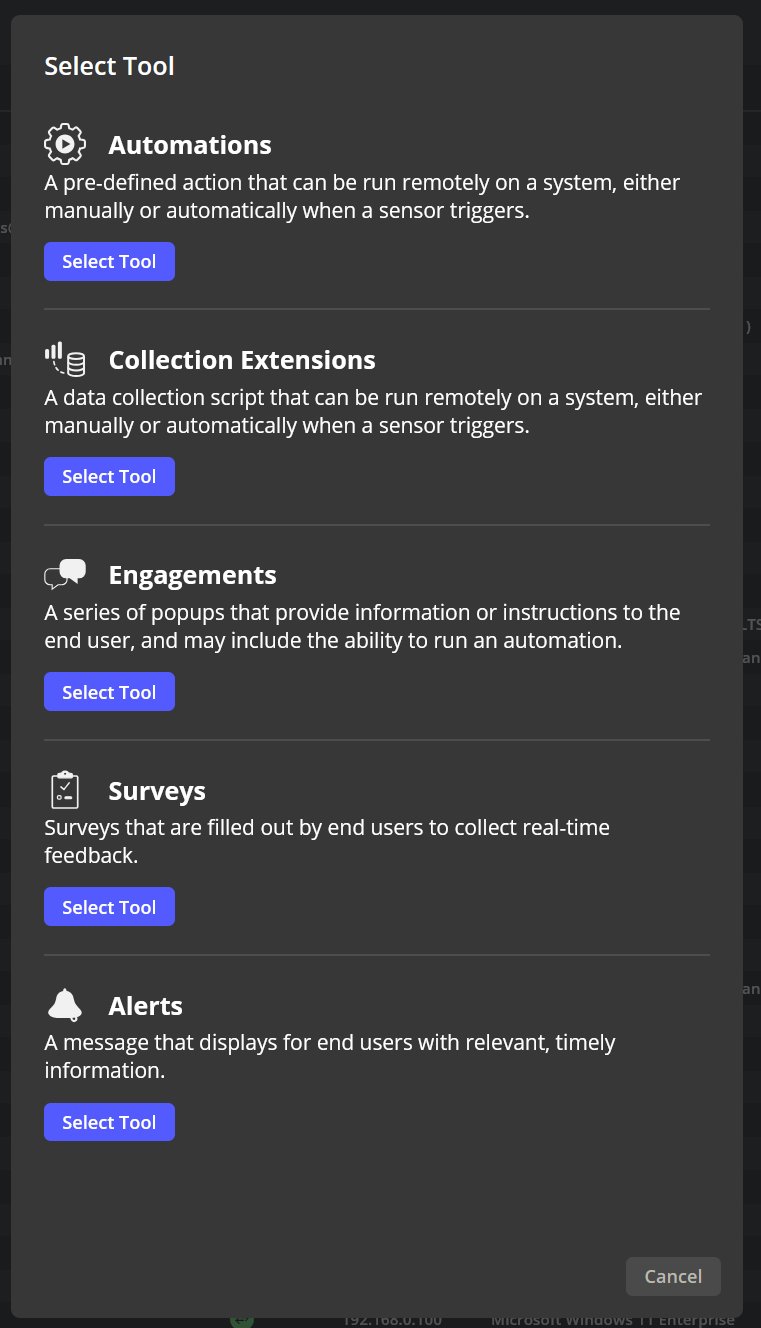
WARNING: Take Action runs the tool on every system in the table. To run it on fewer systems, select a smaller group first.
If no automation, collection extension, engagement, or survey is approved and enabled, the Select Tool button of that tool is unavailable, and a message says that IT has not made any available. Alerts is always available.
See the following sections for further information about each tool.
Automations
Automations are a pre-defined action to run remotely on a system, either manually or automatically when a sensor triggers.
Click Select Tool. The Run Automation dialog box displays. To find an automation, type in Search Automations.
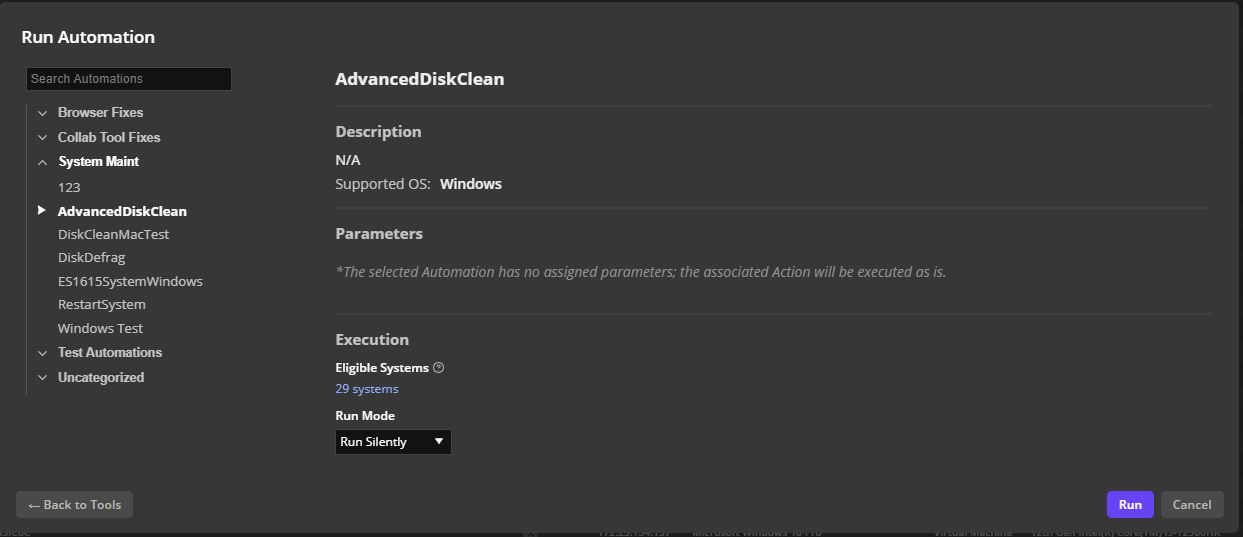
Select an automation from the list. Automations are grouped by category, with unassigned ones listed under Uncategorized. Selecting an automation displays its description, Supported OS, import date, and approval date in the right panel.
NOTE: In Prevent, the Run Automations list displays automations for all operating systems, regardless of the OS of the selected systems. When you run an automation, only eligible systems - those with a matching OS and that are online - will receive it. This differs from Assist and Resolve, where the automations list is filtered to show only automations matching the focus system's OS.
If applicable, enter any parameter values in the Parameters section.
Select a Run Mode. Run mode determines how the automation is run. Choose one of the following:
Run Silently (default): The automation runs in the background with no dialog.
Prompt: The user is asked in the Self-Help app whether to run the automation. It runs only if the user approves.
Notify: The user is told in the Self-Help app that the automation will run. The user cannot stop it.
If the user cannot be asked or notified, the automation does not run. For automations with Notify or Prompt, notifications are sent to the Self-Help app, which requires a Windows operating system. If the automation does not support Windows, Run Mode is set to Run Silently and cannot be changed.
Click Run.
Eligible systems for automations must have an operating system that matches the operating system of the automation and must be online. The Eligible Systems link shows how many systems are eligible. Click it to see the eligible and ineligible systems with their OS and status.
For more information about automations, see Automations.
Collection Extensions
Click Select Tool to run collection extensions.
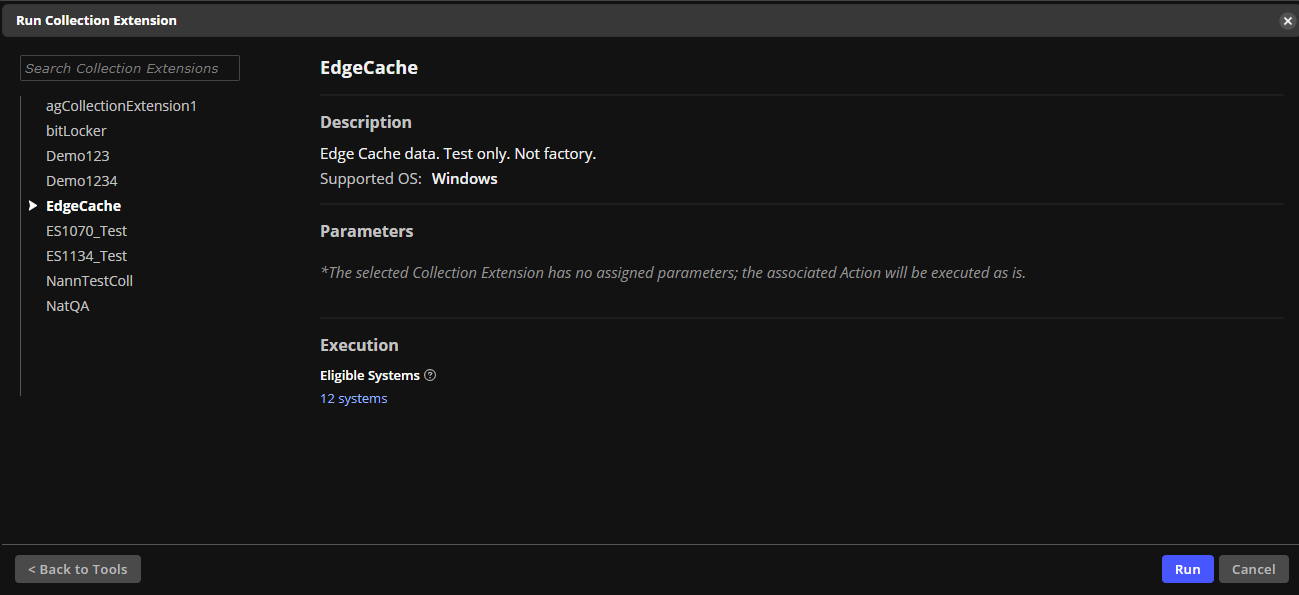
Select the collection extension you want to run and verify that the description describes what you want the action to do.
To receive collection extensions, systems must have Windows as an operating system and be connected to SysTrack.
If applicable, enter any parameter values in the Parameters section.
Click Run.
Engagements
Click Select Tool to run engagements.
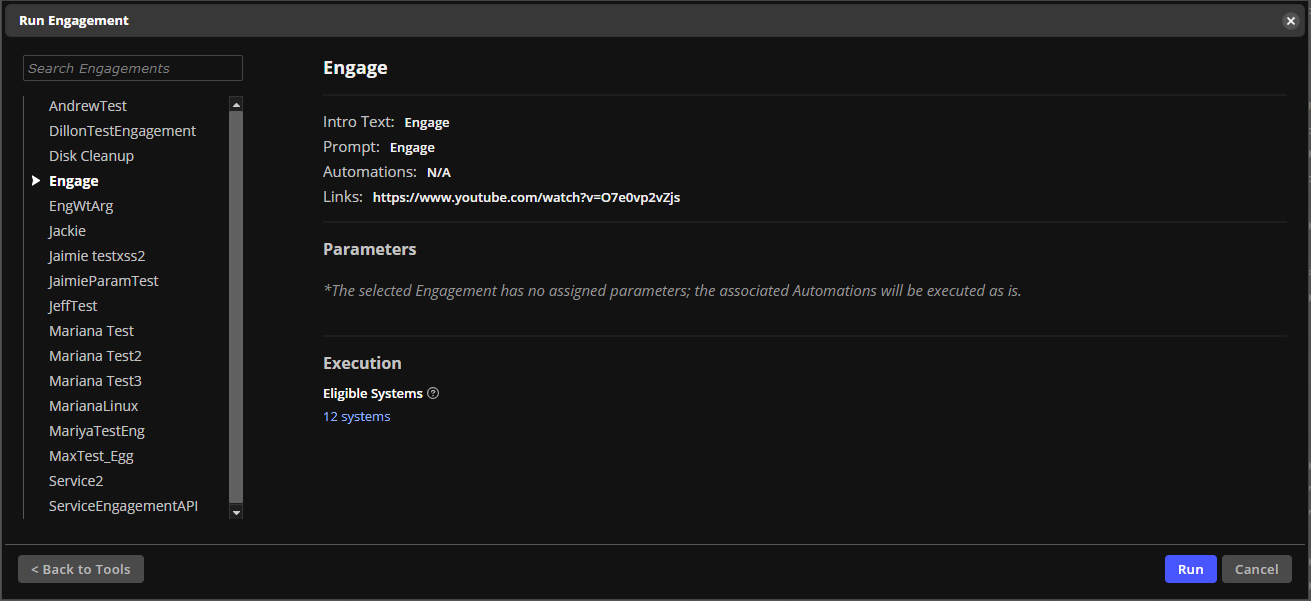
Select the engagement you want to run and verify that the description describes what you want the engagement to do.
To receive an engagement, systems must have Windows as an operating system and be connected to SysTrack. Engagements are sent to systems using the Self-Help app.
If applicable, enter any parameter values in the Parameters section.
Click Run.
For more information about engagements, see Engagements.
Surveys
Click Select Tool to send surveys to systems.
Select the survey from the drop-down list and click Show.
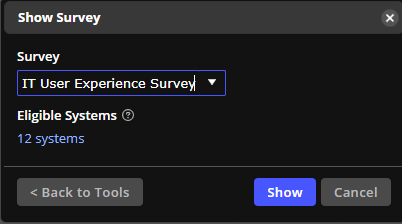
The system(s) to which you send the survey will then receive a similar message to the following on their desktop.

When the end user clicks Begin, they will view a survey similar to the following. You can customize surveys in SysTrack Configure on the Tools > Surveys page.

Systems must have Windows as an operating system and be connected to SysTrack to receive surveys. Surveys are sent to systems using the Self-Help app. The Eligible Systems link shows how many systems can receive the survey. Click it to see the eligible and ineligible systems with their OS and status. For more information about surveys, see Surveys.
Alerts
Click Select Tool to send alerts to systems. Enter a Title and a Message to display on the alert. If Moveworks is set up for your organization, select where the alert shows under Show On: Self-Help, Moveworks (Beta), or both. Click Show. Show is unavailable until the title and the message have text and at least one system is eligible.
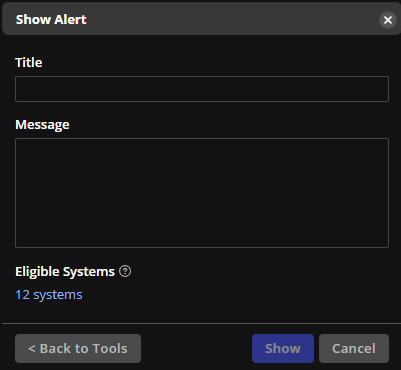
NOTE: The title can have up to 128 characters and the message up to 512 characters.
The system(s) to which you send the alert will then receive a similar message to the following on their desktop.
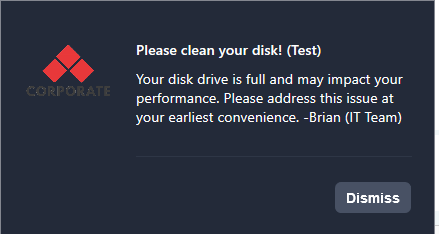
Systems must have Windows as an operating system and be connected to SysTrack to receive alerts. Alerts are sent using the Self-Help app.