On the IT Announcements page, you can create the IT announcements that display in the Self-Help app. Every announcement goes to all systems. In Prevent, go to Operations > IT Announcements. If you do not see the Operations pages, move the detail slider at the bottom of the menu to Advanced.
NOTE: To add, edit, or delete IT announcements, you need the Edit IT Announcements permission (Prevent). Without it, the page is read-only.
Add an IT Announcement
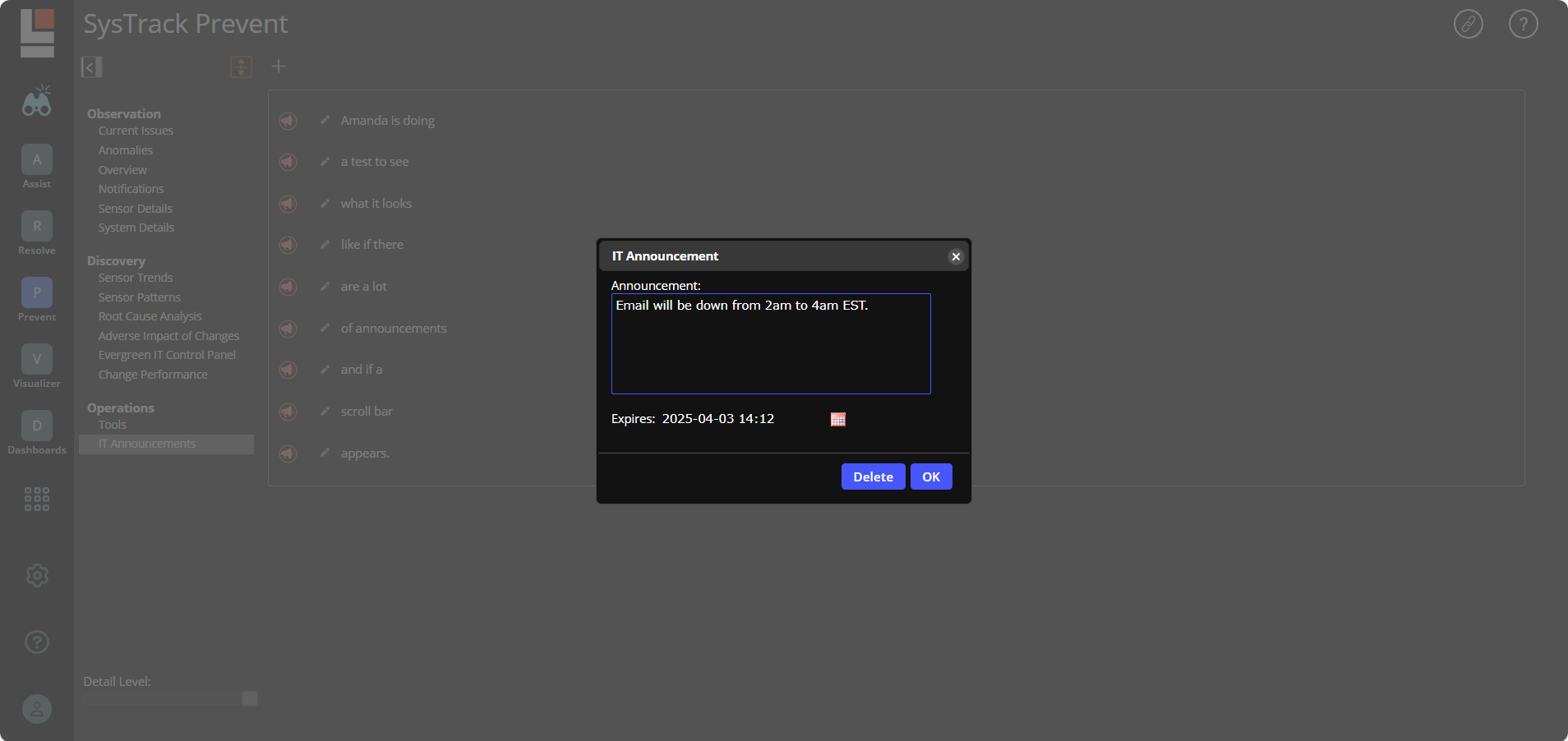
On the IT Announcements page, click the Add Announcement icon. The IT Announcement dialog box opens.
In Announcement, enter the text of the announcement.
In Expires, select the date and time when the announcement stops displaying in the app. By default, Expires is set to tomorrow at the current time. The earliest date is today.
Click OK.
To edit an announcement, click its pencil icon, change the text or the expiration, and click OK.
Delete an IT Announcement
WARNING: Delete removes the announcement at once, with no confirmation. You cannot undo it.
On the IT Announcements page, click the pencil icon of the announcement.
Click Delete.
Popup Notification and Expiration
If you want the end user to receive an alert that they have a new announcement, select the Show Popup Notification for IT Announcements checkbox on the Tray App tab of the Roles page in Configure. By default, this checkbox is cleared. For more information, see Configure the Tray App. The end user will receive the following alert:

In either case, a red notification dot displays on the tray app icon to indicate that there is a new announcement. The red dot disappears once the user opens the app, which opens to the IT Announcements page.
Announcements are stored on the master system and sent down to the endpoint systems when they connect if they are not connected at the time that you create the announcement. Announcements stay on the endpoints and display in the Self-Help app until the date and time that you set in the Expires field of the announcement.