A role is a set of settings, such as alarms, views, tool schedules, surveys, and performance counters, that you configure once and reuse on many systems. A configuration is an ordered list of roles (see Create a New Configuration). To apply roles to systems, add them to a configuration, and then assign the configuration to systems in Assignments.
NOTE: In SysTrack On-Premises, the Roles page also has a Policies tab. See Roles Page Tabs in Differences in Configure for On-Premises.
Because a configuration can hold several roles, systems with different configurations can share a role. For example, a laptop configuration and an Exchange server configuration may be very different, but both can include the same enterprise security role for identical security tracking.
Create a Role
Go to Configure > System Configuration > Roles.
Click the lock icon in the upper-right corner to unlock Configure for editing.
(Optional) Click Show Factory Roles to add SysTrack factory roles to the drop down list on the left. Although factory roles cannot be edited or deleted, using a duplicate can provide a good starting point when creating a new role.
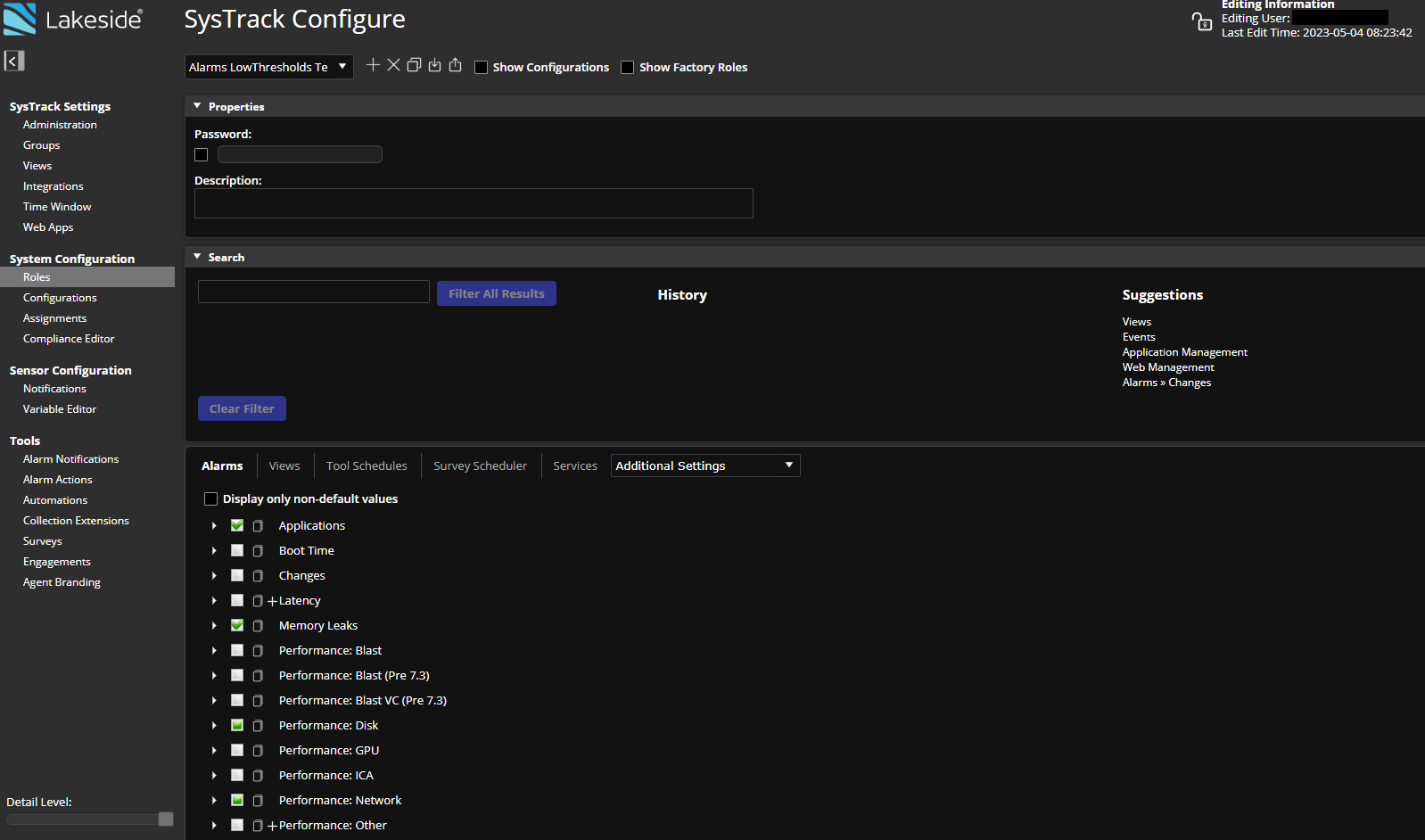
To configure a new role, click the + (plus) icon to display the Create New Role dialog. Alternately, you can click the
 (duplicate) icon and rename and amend an existing role to your specifications.
Enter a name for the role, and click Create.
Import a Role
Go to Configure > System Configuration > Roles.
Click the lock icon in the upper-right corner to unlock Configure for editing.
Click the import icon next to the role list.
In the dialog box, click Import and select the role file. To give the role a new name, select Use new name for imported data and enter the name.
Go to Configure > System Configuration > Configurations, and select the configuration to add the role to.
Search for the imported role, and drag it from Available Roles to Assigned Roles.
Click Save Changes.
Systems with that configuration apply the change the next time they read their configuration. To apply it right away, run Read Configuration on those systems. See Operations: Command Dashboard.
Role Settings
The Roles page shows the following settings for the selected role:
Additional Settings: every other role setting, such as Privacy, Tray App, and Logging.