This article shows how to create a configuration, duplicate a configuration, and set the default configuration for new systems. A configuration is a group of one or more roles. A role sets the performance counters, events, and alarms that SysTrack collects or alerts on. Each SysTrack child system is assigned one configuration, which sets the data that the SysTrack agent collects from that system.
IMPORTANT: Do not change the systrackdefault configuration. SysTrack overwrites it with basic settings during upgrades, and your changes are lost. Create or duplicate a configuration instead, and set it as the default configuration for new systems. For details, see Information About the SysTrack Default Configuration.
Set the Detail Level slider at the bottom of the navigation pane to Novice or higher, so that Configurations appears under System Configuration.
In Configure, go to System Configuration > Configurations.
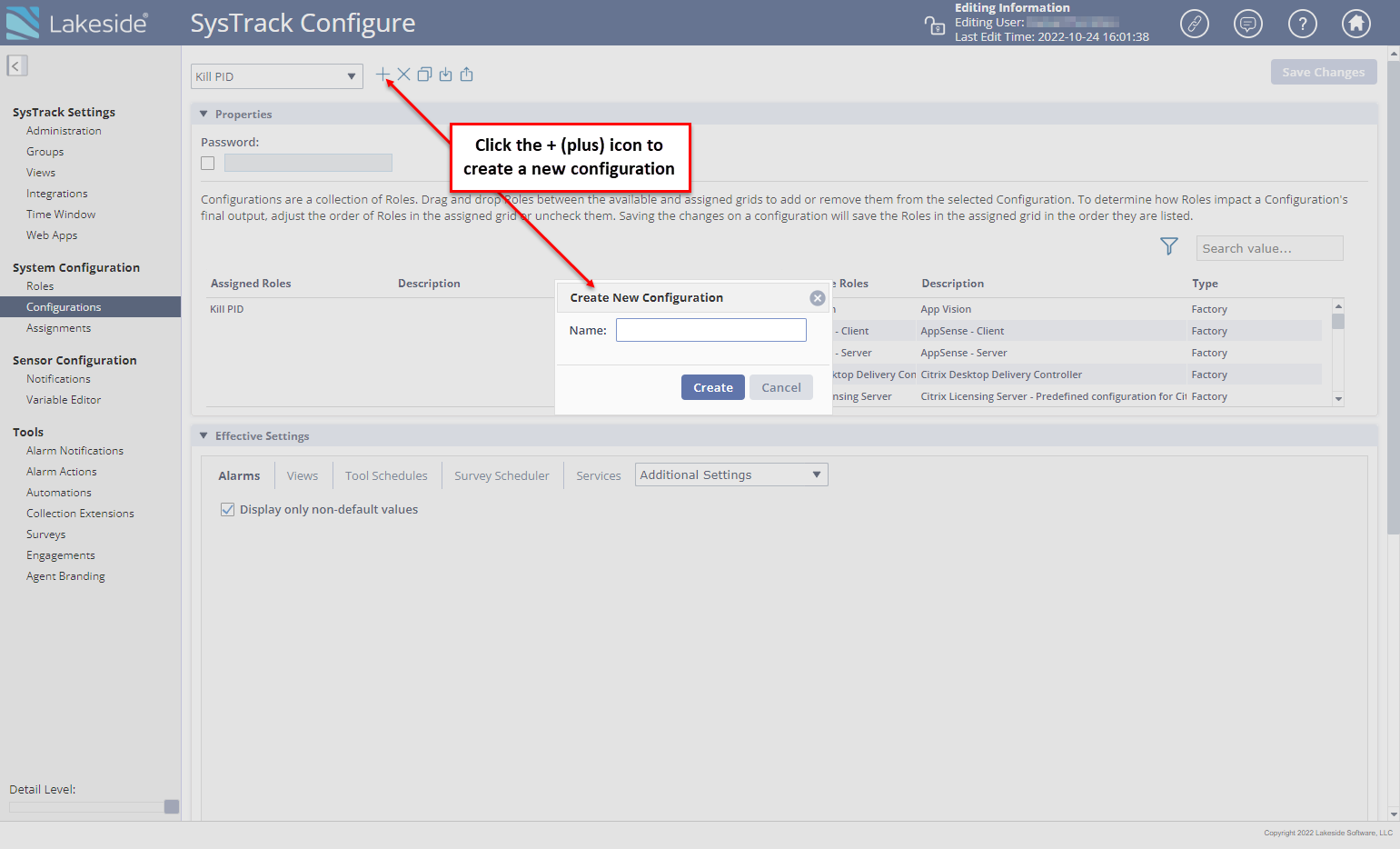
Click the + (plus) icon and then enter a name in the Name field.
If the Configuration should be password protected, check the Password option and specify a password.
Drag one or more roles from the Available Roles grid onto the Assigned Roles grid.

Drag the roles in the Assigned Roles grid to reorder the precedence. The top role has the highest precedence. For the rules, see Role Precedence in a Configuration.
Click the Save Changes button at the top right of the page when modifications are complete.
To view the effective settings (based on the assigned roles) on the tabs in the Effective Settings section, clear the Display only non-default values checkbox.
NOTE: To view the settings for a particular role, create a new Configuration with only that role assigned to it, and then mark the Display only non-default values checkbox.
Role Precedence in a Configuration
The list of roles in the Assigned Roles grid of a configuration is ordered by precedence from top to bottom. The top role in the list has the highest precedence, and the bottom role has the lowest precedence.
For settings where roles provide different values, the highest role in the list usually takes precedence. Some settings are additive instead. For example, Views and Tool Schedules can include items from all assigned roles.
IMPORTANT: A role cannot change an item back to a default value. This rule applies to settings such as checkboxes, drop-down settings, and text fields. If one role changes a setting from its default value, another role cannot set it back to the default by being placed higher in the list. To keep the default value, all roles in the configuration must leave that setting unchanged.
As you add, remove, or reorder roles, review the effective settings in the configuration to confirm the final settings that will be applied.
Duplicate a Configuration
On the Configurations page, you can create a configuration as a copy of an existing one, for example of systrackdefault.
Click the lock icon on the top right of the page to unlock SysTrack Configure for editing.
In Configure, go to System Configuration > Configurations.
In the configuration list, select the configuration to copy.
Click the duplicate icon next to the configuration list. A dialog with a Name field opens.
In Name, enter a name for the new configuration. The name Default is reserved.
Click Duplicate.
The new configuration appears in the configuration list.
Set the Default Configuration for New Systems
The Set default configuration for new systems setting on the Administration page selects the configuration that new systems get.
Click the lock icon on the top right of the page to unlock SysTrack Configure for editing.
In Configure, go to SysTrack Settings > Administration.
In the Settings panel, select the configuration in Set default configuration for new systems.
Click Save Changes.
Apply a Configuration Change Now
Systems receive configuration changes during routine processing. To apply a change now, go to Configure > SysTrack Settings > Administration. In the Operations panel, select the systems. Under Command Dashboard, select Read Configuration, and click Run.