The Tray App runs on Windows systems and shows the Self Help icon in the system tray. It also runs the automations, engagements, and surveys that interact with the user. Use the Tray App settings of a role to configure it in several ways:
Set it to run or not run.
Show or hide the Self Help icon in the system tray.
Add shortcuts to the Tray App on the desktop and from the Start menu.
Show or hide the Detected Issues and Tools screens in Self Help.
Set Self Help expiration and interval times.
Enable popup notifications for IT announcements.
NOTE: Select the Display only non-default values check box to see only modified settings. Click the
button (indicating a non-default value) to restore a setting to its default value.
Go to Configure > System Configuration > Roles.
Click the lock icon in the upper-right corner to unlock Configure for editing.
Select the role.
From the Additional Settings list, select Tray App.
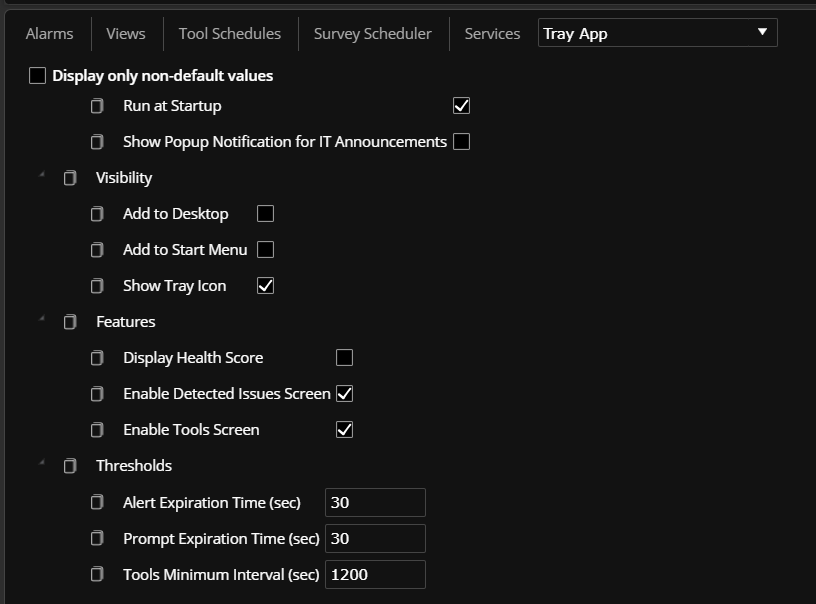
In Behavior, select one of the following:
Run at Startup: Deselect it to prevent the Tray App from running (with the exception of silent-only automations). This option is the default.
Show Popup Notification for IT Announcements: Select to show a Windows popup notification when an IT announcement is sent. If it is cleared, IT announcements still display in Self Help, but the user is not notified of them. Cleared by default.
In Visibility:
Add to Desktop: Add a Self Help shortcut on the desktop. Cleared by default.
Add to Start Menu: Add a Self Help shortcut to the Windows Start menu. Cleared by default.
Show Tray Icon: Selected by default. To run the Tray App, but not show the Self Help icon in the Windows system tray, deselect Show Tray Icon. Automations, engagements, and surveys can still be used, but Self Help functions cannot be accessed from the system tray.
In Features:
Display Health Score: Select to show the health score of the device in the System Info section of Self Help. The health score shown is the 7-day average. Cleared by default.
Enable Detected Issues Screen: Clear to hide the Detected Issues screen. Selected by default.
Enable Tools Screen: Select to show the Tools screen in Self Help, where users can run approved automations on their device. Selected by default.
In Thresholds:
Alert Expiration Time: Set how long, in seconds, an alert popup stays open without input from the user. 30 seconds is the default value. This setting does not affect how long IT announcements display in Self Help. Each announcement displays until the date in its own Expires field.
Prompt Expiration Time: Set the prompt expiration time in seconds. 30 seconds is the default value. This setting applies to engagements and surveys.
Tools Minimum Interval: Set the shortest time, in seconds, between two runs of a tool from the Tools page in Self Help. 1200 seconds is the default value.
Click Save Changes.
Systems that use the role apply the change the next time they read their configuration. To apply it right away, run Read Configuration on those systems. See Operations: Command Dashboard.
Troubleshoot the Tray App
If an engagement is sent but the Tray App on the system shows no notification, see Engagement Notification Issue in the Tray App.