You can receive a notification when a SysTrack agent is offline. Use the Agent and Supervisor Not Connected to Master sensor (in the SysTrack category) to receive a notification.
NOTE: This sensor is only in sensor notifications, and it must be the only sensor in its notification. You cannot combine it with other sensors.
This sensor is intended for a group of critical devices that are expected to always be online. For example, you may set this to a group of servers for your call center team.
This sensor is looking for:
whether the web socket connection between the agent and master has been closed for at least 10 minutes.
whether any sensor data has been received from the last 10 minutes. The data contains all results, which sensors have gone off and which have not. If there is no sensor data received, this indicates a problem with the Agent and Supervisor Service.
If there is no web socket connection and no sensor data for 10 minutes, it is likely that the agent is disconnected.
Create a Notification for Offline Agents
Go to Configure > Sensor Configuration > Notifications, unlock Configure, and start a new sensor notification. See Create a Sensor Notification.
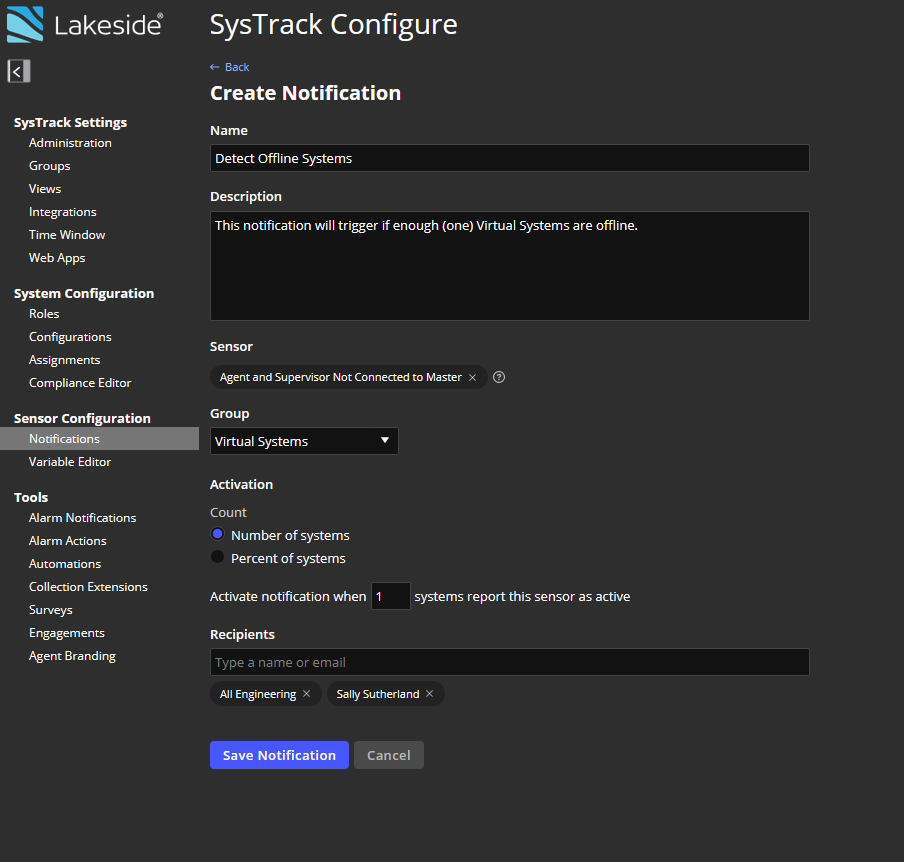
In Sensors, select the SysTrack category, select Agent and Supervisor Not Connected to Master, and click + Add.
If you first added another sensor, the editor shows This sensor must be added by itself. Click Remove Other Sensors to remove the other sensors.

In Group, select the group of critical systems. The default is All Systems.
IMPORTANT: We strongly recommend that you do not set the group for this notification to be All Systems because recipients would receive many notifications.
In Activation > Count, select Number of Systems (default) or Percent of systems. In Activate notification when, enter the number or percentage of offline systems that activates the notification. See step 10 of Create a Sensor Notification.
Add the recipients, and click Save Notification.
Click the lock icon when you are done.