Use alarm time windows to disable alarms, alarm actions, or alarm notifications during specified time periods. You assign these time windows to alarms on the Roles page. The SysTrack Agent tracks application usage and user activity 24 hours per day, 7 days per week by default. Each half-hour slot of each day of the week can have a user-specified combination of alarm enable, alarm notification, and alarm action settings.
SysTrack Configure offers the following preset factory time windows:
12x5 (enables notifications and alarms 12 hours a day on five days a week)
18x6 (enables notifications and alarms 18 hours a day on six days a week)
24x7 (enables notifications and alarms 24 hours a day on 7 days a week)
Never Run
NOTE: Factory time windows are not editable. When you select one, the page shows "This is a factory time window that cannot be edited". Only custom time windows are editable.
In each preset name, such as 12x5, the first number indicates the number of hours per day the alarms, alarm notifications, and alarm actions are enabled, the second number indicates the number of days per week they are enabled.
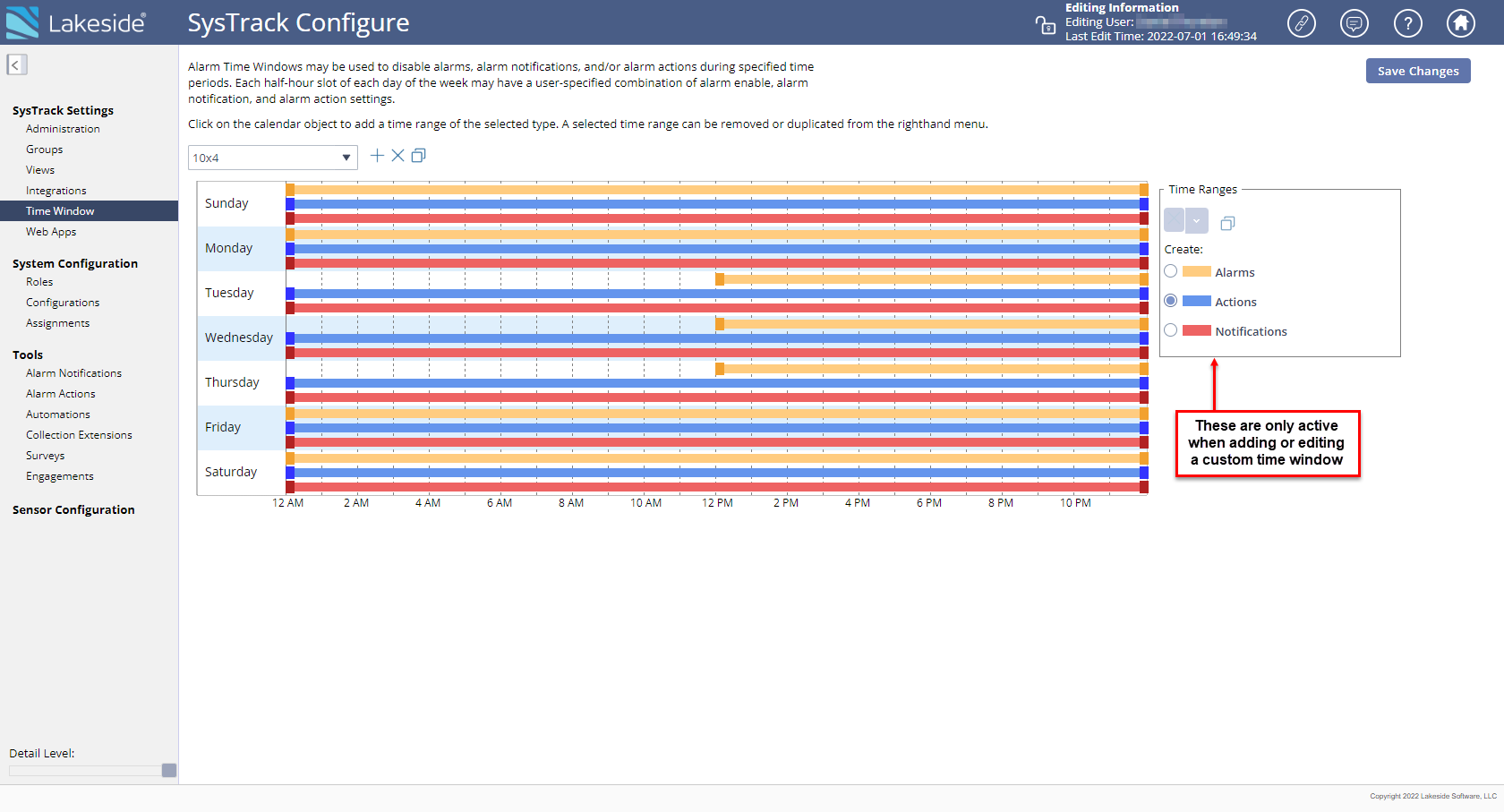
Add or Edit a Custom Alarm Time Window
Go to Configure > SysTrack Settings > Time Window.
Unlock Configure for editing. See Unlock for Editing.
To add a time window, click the plus icon to open the Create New dialog box. To start from an existing time window, select it and click the
 (duplicate) icon. To edit a custom time window, select it and go to step 5.
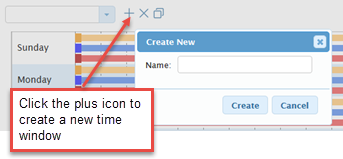
Enter a Name for the time window and click Create. The name must be unique. The time window starts with 24x7 time settings.
Select any bar in the time window to activate the Time Ranges options.
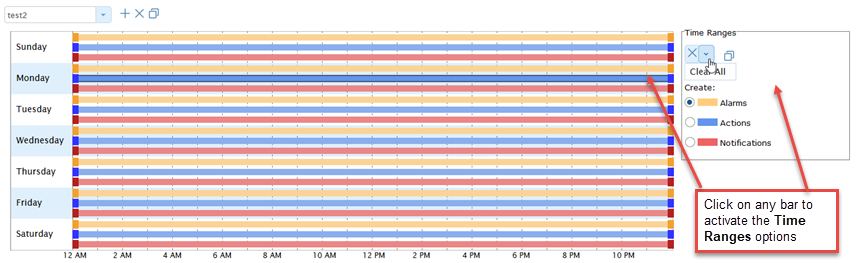
In Time Ranges, the radio buttons after Create: are Alarms (default), Actions, and Notifications. The color of each option matches the color of its bars on the chart.
To delete a selected bar, click X in Time Ranges. To clear all the time range bars, click the down arrow next to X and select Clear All.
To add a bar, select Alarms, Actions, or Notifications in Time Ranges, and then click a blank time area in the grid.
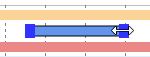
Drag either end of the time bar to set the time range.
Click Save Changes on the top right of the page.
To use the time window, assign it to alarms on the Roles page.