Use Web Apps in Configure to declare the URLs for which data is collected. You can then view and analyze that data in Resolve to identify and troubleshoot problems from an end-user perspective. With more and more software being delivered as web-based applications, there is an increasing need for in-depth data about URLs accessed while using those applications.
Prerequisites
Web data collection must be enabled for the systems. See SysTrack Browser Extension.
The configuration assigned to the systems must have Collect Full Web URL selected on its Web Management tab. It is selected by default. When it is cleared, SysTrack keeps only the first part of each URL, so the sub-pages of a web app are not recorded.
NOTE: In SysTrack On-Premises, Web Apps is available only on the Global Master.
Add a Web App
Because not all web activity is application related, you need to specify the URLs associated with applications of interest. Web app data collection is then limited to only those declared applications.
Go to Configure > SysTrack Settings > Web Apps.

Unlock Configure for editing. See Unlock for Editing.
Click Add Web App. The Add New Web App dialog box opens.
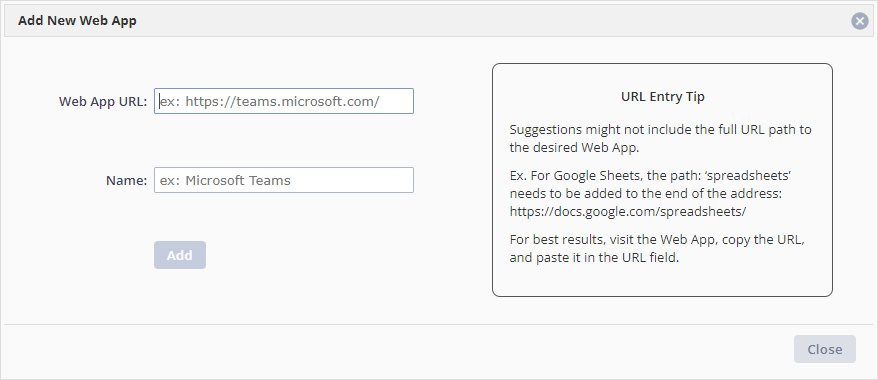
In Web App URL, enter the top-level URL of the web app. The URL must start with http:// or https:// and include the applicable subdomain. You cannot add a URL that matches a web app that is already in the list. All sub-pages of that base URL are considered sections of the declared web app. The autocomplete list shows popular websites, sorted by number of hits.
In Name, enter the name that identifies the web app. SysTrack suggests a name, which you can change. The name is required, must be unique, and cannot contain < or > or emoji.
Click Add. The Added! message confirms that the web app is added to the list of web apps.
Add more web apps as needed, then click Close.
Edit a Web App
Go to Configure > SysTrack Settings > Web Apps and unlock Configure for editing.
Use the Search value field to find the web app.
Click the name of the web app. The Edit Web App dialog box opens.
Change the URL or the name, and click OK.
Delete a Web App
WARNING: SysTrack collects web app data only for the web apps in the list. After you delete a web app, its URL is no longer a declared web app.
Go to Configure > SysTrack Settings > Web Apps and unlock Configure for editing.
In the row of the web app, click the delete icon. The Delete Web App dialog box opens.
Click Delete.
To open the Web Apps page in SysTrack Resolve, click View in Resolve in the upper right. After you add, edit, or delete web apps, click the lock icon on the top right of the page to lock Configure.
Troubleshooting Web Apps
If web app data does not appear in Resolve > Web Apps, see Web Apps Data Missing in Resolve.