On the Administration page in Configure, the top section is Settings. It sets the color theme of SysTrack and the default configuration for new systems. It also has the setting for automatically removing non-connecting systems. Access to the Administration page depends on your user privileges.
NOTE: In SysTrack On-Premises, Settings also has Host name and Use FQDN for systems added to the tree, and Auto Remove Non-Connecting Systems appears only on the Global Master. See Settings in Administration in Differences in Configure for On-Premises.
Follow these steps to select a display color theme for SysTrack and set a default configuration for new systems:
Go to Configure > SysTrack Settings > Administration, and unlock Configure for editing.
In the Theme field, select one of the following:
Dark (default)
Light
In the Set default configuration for new systems field, select the configuration to apply to new systems. The default is the Default configuration. You can set Configurations on the Configurations page.
Click Save Changes. The selected color theme is also applied to the SysTrack launch homepage.
Auto Remove in Configure
In large environments where systems are often re-imaged or upgraded, finding and removing the old systems from SysTrack can take a long time. If you use the auto remove setting, it will reclaim the license for a system when it has not connected from the environment within the set period of time. Auto Remove Non-Connecting Systems is disabled by default.
Go to Configure > SysTrack Settings > Administration, and unlock Configure for editing.
In Settings, find Auto Remove Non-Connecting Systems. Disabled is the default.
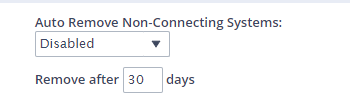
WARNING: SysTrack removes each system that has not connected for the set number of days, and its data. This cannot be undone.
In Auto Remove Non-Connecting Systems, select Enabled.
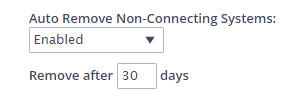
In Remove after, enter the number of days. The default is 30 days, and the minimum is 1 day.
Click Save Changes.
The check runs once a day. It removes each system that has not connected for the number of days in Remove after. The agent is not uninstalled. If the system is reconnected, it will connect and continue condensing data.