Use the Automation settings of a role to set the prompt that users see before automations run, and the time limits for automations on systems that use the role.
To open these settings:
Go to Configure > System Configuration > Roles.
Click the lock icon in the upper-right corner to unlock Configure for editing.
Select the role.
From the Additional Settings list, select Automation.
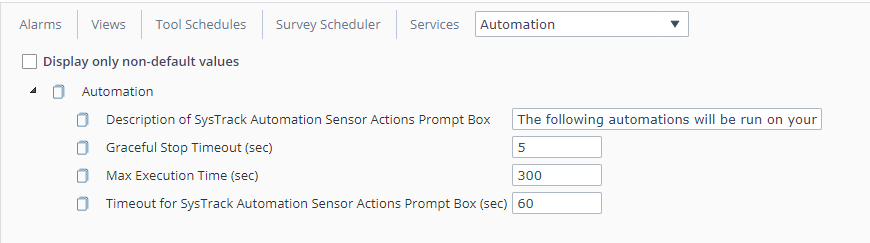
Change the settings as required:
Description of SysTrack Automation Sensor Actions Prompt Box: If you set or run an automation manually, this is the message that will show. The default is The following automations will be run on your system:
Graceful Stop Timeout (sec): SysTrack asks the automation to close, waits this amount of time, and then forces the automation to stop. The default is 5 seconds. This applies to any automation or collection extension that has a timeout.
Max Execution Time (sec): The maximum time a synchronous automation can run. Each automation has its own limit, and you cannot set it over the maximum time. The default is 300 seconds: a synchronous automation is stopped after it runs for 300 seconds. This setting does not apply to other automations.
Timeout for SysTrack Automation Sensor Actions Prompt Box (sec): How long the prompt box stays open. The default is 60 seconds. Enter 0 for no timeout.
After you change a setting, click Save Changes.