The Recipients tab of the Notifications page (Configure > Sensor Configuration > Notifications) displays all current recipients of sensor notifications and the users that can be assigned to notifications. For each recipient, the list shows Name, Type, Details (the email address or URL), and Notifications Assigned. In SysTrack Cloud, every SysTrack user of the tenant is in the list as a User, also when no notification is assigned to them.
NOTE: In SysTrack On-Premises, User recipients are not SysTrack users. SysTrack does not send them an invitation, and you can edit their name and email. See Sensor Notification Recipients in Differences in Configure for On-Premises.

An administrator can perform the following tasks for recipients:
Add or remove recipients.
Update existing recipients.
Update recipient notification assignments.
NOTE: If an administrator adds or removes recipients of a notification on the Recipients tab, the notification is not dismissed. However, if an administrator edits a notification on the Notifications tab to add or remove a recipient, the notification is dismissed.
Add a Recipient
Go to Configure > Sensor Configuration > Notifications, and select the Recipients tab.
Click the lock icon to unlock Configure for editing.
Click the plus icon in the upper left corner to open Add New Recipient.
In Recipient Type, select a recipient type:
User (default): an individual
Distribution List: an email address for a group of individuals
System: a third-party system that can receive an email or webhook
For User, enter the First Name, Last Name, and Work Email.
For Distribution List, enter the Name and Email.
For System, enter the Name. In Connection, select Email (default) and enter the email address, or select Webhook and enter the webhook settings.
NOTE: See Webhook Support for Sensor Notifications for more information about webhooks.
(Optional) For a recipient that receives email, select Receive Anomaly Notifications? to also send anomaly notifications to this recipient. The check box is cleared by default. It shows only when anomaly notifications are available.
Click Add Recipient. Each email address can belong to only one recipient. The Assign Notifications to dialog box opens.
Assign Notifications
To assign notifications to a new recipient, in the Assign Notifications to dialog box, select the check box next to each notification and then click Assign Notifications.
NOTE: If you continue without assigning notifications or you dismiss the dialog box, the recipient is still created, but does not have any assigned notifications.
Change Notification Assignments
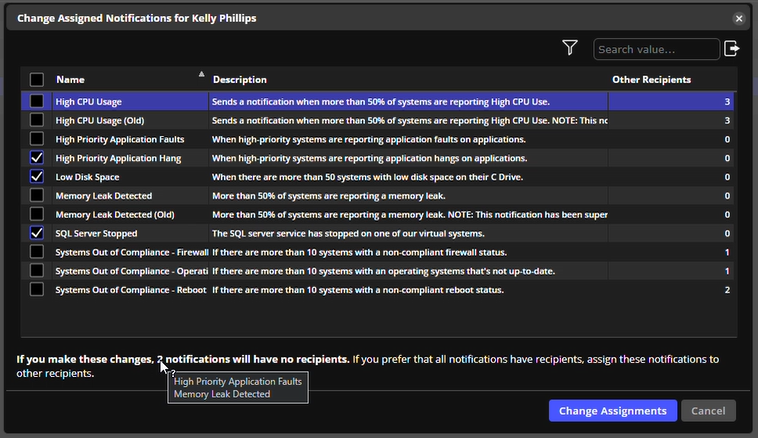
On the Recipients tab, click the number of assigned notifications in the Notifications Assigned column. The Change Assigned Notifications for dialog box opens.
Select or clear the check box next to each notification, and then click Change Assignments.
If you are making changes that will leave a notification with no recipients, a message displays. When you hover over the number of notifications, a list of those notifications displays.
Edit Existing Recipients
On the Recipients tab, click a recipient name. The Recipient Details dialog box opens.
The type of recipient determines what information you can edit:
Users: you cannot edit any information. The dialog box shows "Tenant user details such as name and email cannot be edited."
Distribution list: edit name and email
System (email): edit name and email
System (webhook): you can edit all information
NOTE: You cannot change the recipient type. For example, if you create a recipient user type, you cannot switch that type to a distribution list.
Click Update Recipient.
To edit the notifications a recipient is assigned to, see Change Notification Assignments.

Delete a Recipient
What happens when you delete a recipient depends on the recipient type. In SysTrack Cloud, a SysTrack user stays in the recipient list and in SysTrack, and only loses the notification assignments. Other recipients are removed from the recipient list and from all notifications they are assigned to.
WARNING: Deleting a distribution list or system recipient removes it and its settings, such as the email address or the webhook settings, and removes it from every notification. To use it again, add it again and assign its notifications again.
Go to Configure > Sensor Configuration > Notifications, select the Recipients tab, and click the lock icon.
Click the row of the recipient and click the X to delete it. A dialog box opens:
For a SysTrack user in SysTrack Cloud, the Remove Assignments for dialog box says that all assignments of the user will be removed, and that an admin can completely remove a user from SysTrack in User and Group Management. Click Remove Assignments. The user stays in the list with 0 notifications assigned.

For other recipients (distribution lists, systems, and in SysTrack On-Premises, users), a dialog box titled Delete and the recipient name opens. Click Delete Recipient. The recipient is removed from the list and from all notifications.
NOTE: If you remove a recipient who is the only recipient on a notification, that notification will have zero recipients but can still be enabled. In this case the notification will still show in Prevent when it is activated. If you remove the last recipient you will receive a warning that the notification will contain zero recipients.
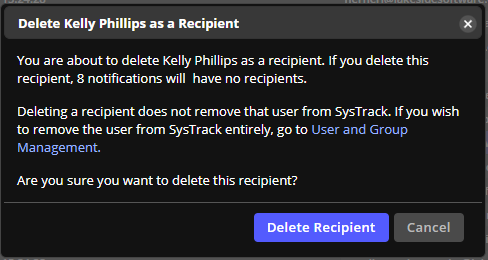
If you hover over the number of notifications, it displays which notifications will have no recipients.
Invite a User from Sensor Notifications
You can add a recipient to a sensor notification without that recipient being a SysTrack user. Depending on your permissions, that user recipient either receives an invitation to join SysTrack or your SysTrack administrator sends a request to invite them.
Invite a User
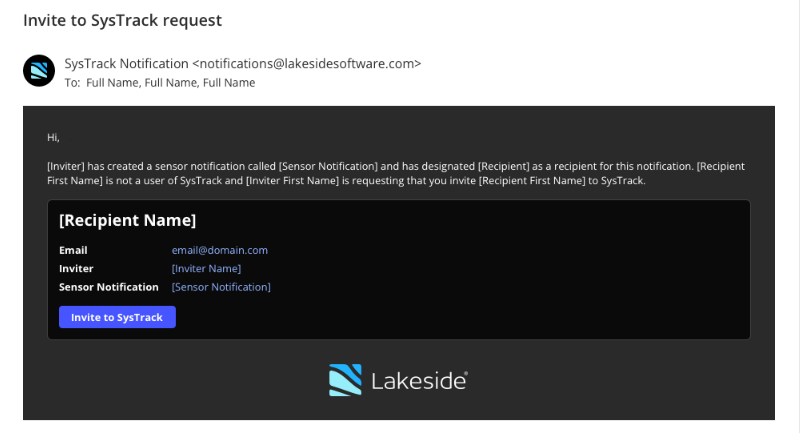
If the person taking the action of adding a new user recipient is an administrator, the user is automatically invited to SysTrack.
If the person taking the action of adding a new user recipient is not an administrator, an invitation request is generated and sent to SysTrack Administrators.
You can add a user recipient only if the email domain is not blocked for your tenant and the tenant has not reached its user limit.
See the email invitation request below.