An action profile tells the SysTrack Agent what to do when an alarm condition starts and when it ends, for example run a script or restart a service. The agent counts the failures, so First Failure, Second Failure, and Subsequent Failures can each have a different action. Action profiles are separate from notification profiles. You select an action profile for each alarm category on the Alarms tab of a role. See Configure Alarms in a Role.
NOTE: In SysTrack On-Premises, the Alarm Actions menu is available only on the Global Master.
Add, Delete, and Duplicate Alarm Actions
Create, duplicate, and delete action profiles on the Alarm Actions page in Configure. Watch the video or follow the steps below.
In Configure, go to Tools > Alarm Actions.
Click the lock icon on the top right of the page to unlock SysTrack Configure for editing.
Do one of these:
To create a profile, click the + icon next to the drop-down list at the top of the page. Enter a name and click Create. The new profile has the default settings, and the page opens it. To set its actions, see Configure Alarm Actions.
To duplicate a profile, select it in the drop-down list at the top of the page, then click the copy icon. Enter a name and click Duplicate. The new profile has the same settings as the selected profile.
To delete a profile, select it in the drop-down list at the top of the page, then click the X icon. Click Delete to confirm.
WARNING: You cannot undo the delete, and SysTrack does not warn you when a role uses the profile. Roles that use the profile stop using it, so their alarms no longer run its actions. Check the Alarms tab of your roles before you delete a profile.
A profile name must be unique among all action and notification profiles and can have up to 50 characters. It cannot contain special characters, such as periods, commas, slashes, or quotation marks. Hyphens and underscores are allowed.
Configure Alarm Actions
In Configure, go to Tools > Alarm Actions.
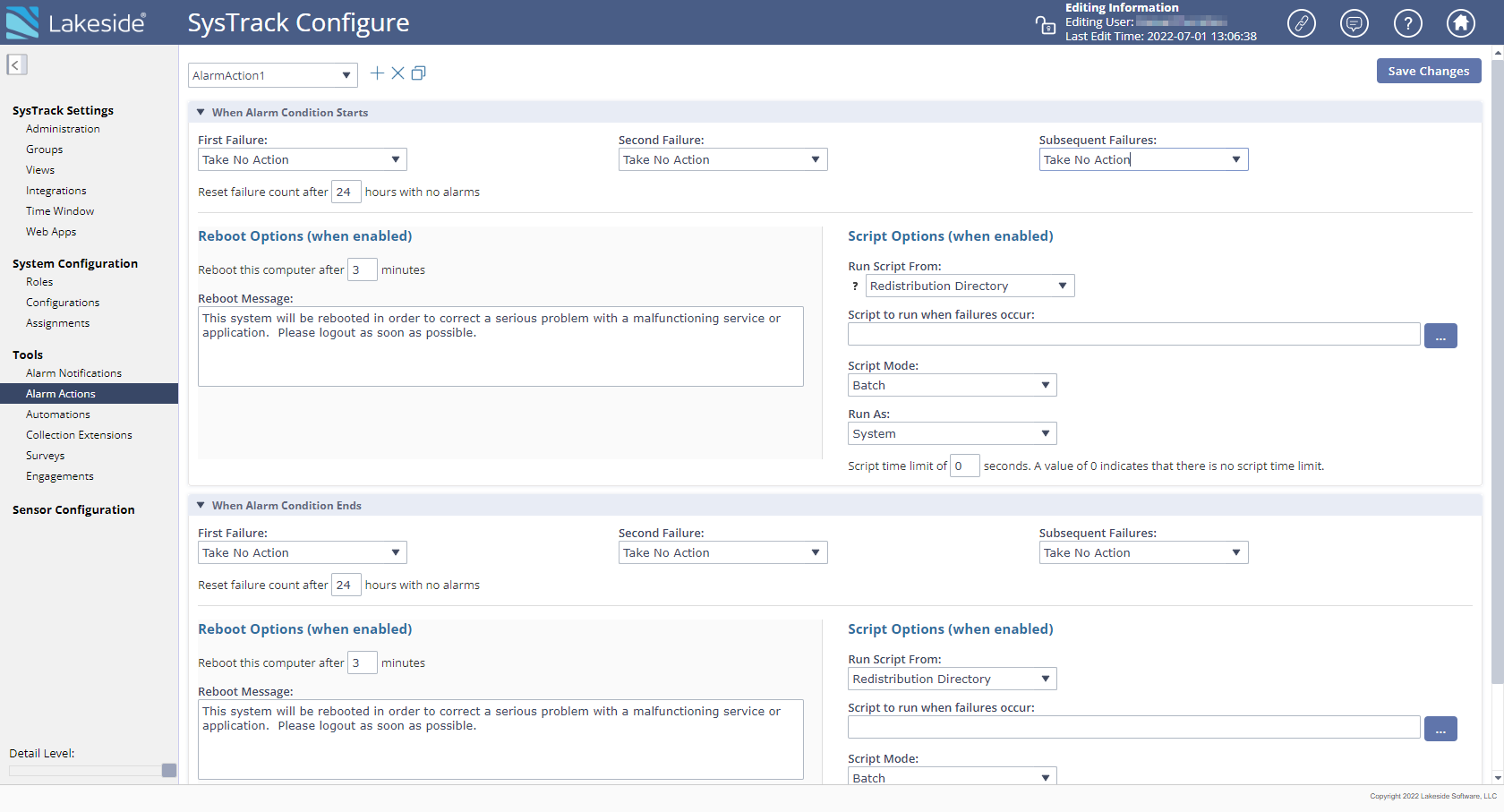
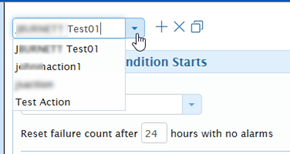
Select the action profile for which to configure actions from the drop-down list at the top of the page, or click the + icon to create a new profile.
Complete steps 4 to 6 for both sections of the page: When Alarm Condition Starts and When Alarm Condition Ends.
In First Failure, Second Failure, and Subsequent Failures, select the action to take for each failure. The default is Take No Action.

Failure means different things for different alarms. For example, for the Services and Processes alarms a failure can indicate that a monitored service, application, or process has failed. For other alarms, such as a Performance System alarm, a failure indicates that the configured threshold has been breached. The failure count starts again after the number of hours with no alarms in Reset failure count after. The default is 24 hours. The available actions are as follows:
Action
Description
Take No Action
No action is taken upon failure. This is the default.
Run Script
Runs the script set in Script Options (when enabled) (step 6). If no script is specified, no script runs, so do not select this option. For example, a script can copy the service and event viewer logs and send them to a particular individual. Use a script for actions that the SysTrack Agent cannot do by itself.
Reboot the Computer
Reboots the computer with the settings in Reboot Options (when enabled) (step 5). Some processes and services start again only after a reboot.
Change Scheduling Priority
Changes the priority of the process that triggered the alarm to Below Normal for 30 seconds, then restores the previous priority. Windows only.
Restart The Service
Stops the service that triggered the alarm, waits 15 seconds, and starts it again. Active dependent services are stopped and started again too.
Stop The Service
Stops the service that triggered the alarm. Active dependent services are stopped too.
Start The Service
Starts the service that triggered the alarm.
WARNING: On Windows, Reboot the Computer closes open applications by force when the reboot delay ends, so users can lose unsaved work. Use the Reboot Message to tell users to save their work.
If you selected Reboot the Computer, set the Reboot Options (when enabled):
Reboot this computer after a number of minutes: the time between the alarm and the reboot. The default is 3 minutes.
Reboot Message: the message that users on the system see before the reboot, up to 250 characters. The default message tells users that the system will reboot to correct a serious problem and asks them to log out.
If you selected Run Script, set the Script Options (when enabled):
In Run Script From, select where the script is:
Redistribution Directory (default): click ... to upload the script. SysTrack distributes it to the systems that use the action profile.
Specified Directory: a local or network location to run the files. If you select this option, specify the Script to run when failures occur. You can click ... to open a dialog box that helps you locate the script.
NOTE: By default, the SysTrack Agent runs as the local system account. Therefore, the SYSTEM account of each system needs permissions to this location.
Select a Script Mode from the drop-down list: Batch (default) or Interactive. A batch mode script has the lines of instruction that are carried out, one after another, until the script is complete. The interactive mode involves the use of direct action and input from the monitoring personnel to carry out the script items. Script Mode applies only to scripts that run through Windows Script Host, for example
.vbsand.jsfiles.From the Run As drop-down list, select one of the following options:
System (default): runs the script as a local system account, which means that the end user has no interaction with the script (usually preferred and recommended).
Console User (Do not run if no console user): assumes that user interaction is necessary (and Interactive mode would be selected).
Affected User: runs the script only for the affected user.
NOTE: Scripts in SysTrack are run from the command line. Default Windows behavior is to edit a PS1 file on execution. If you run scripts through the PowerShell console, use the following command:
powershell.exe -executionpolicy remotesigned -file "C:\path\to\PowerShellScript.ps1"
(Optional) In Script time limit, enter the maximum run time of the script in seconds. The default is 0, which means no time limit. When the time limit is reached, the SysTrack Agent stops the script. The time limit applies only to scripts that run through Windows Script Host, for example
.vbsand.jsfiles. It does not apply to.bat,.cmd,.exe, or.ps1files.
When you are done, click Save Changes at the top right of the page.
Troubleshooting Alarm Actions
An Alarm Action Script Does Not Run
If an alarm action does not run its script on a system, see Alarm Action Unexpectedly Fails on Agent.