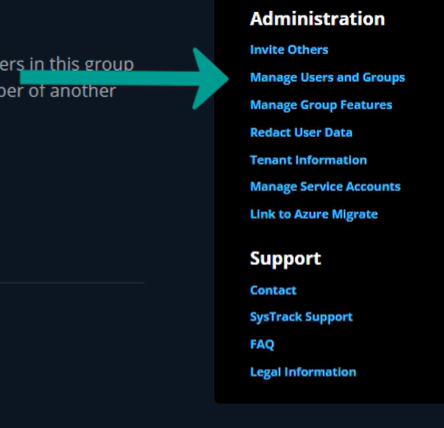
Administrators can customize Assist for their environment. As an administrator, you can:
Set up Remediations.
Add an automation to Tools.
Configure the follow-up survey.
Provide access to Assist tools.
Set up Remediations
If a Help Desk agent clicks Remediate in Detected Issues, an automation runs on the system. Administrators set up remediations in Configure: in the schedule of the automation, set Run Mode to Assist - Detected Issues. See Schedule Automations for more information.
To run automations and collection extensions, you also need the Resolve permission Run Tools Manually.
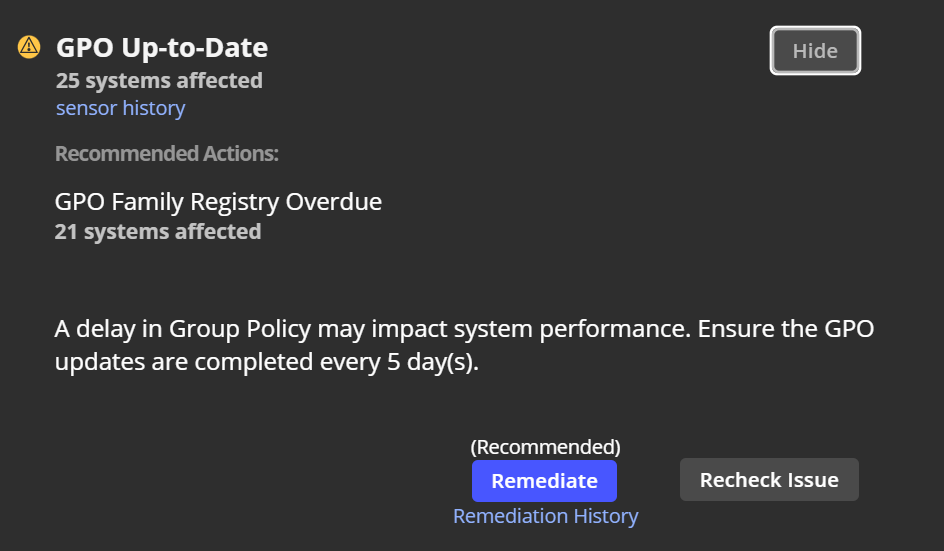
Add an Automation to Tools
Tools in Assist gives the Help Desk agent the ability to run pre-approved automations and engagements.
To include an automation on the Run Automations tab, go to Configure > Tools > Automations and Collection Extensions, open the automation, and under Additional Availability, select Make available in Assist. This check box is cleared by default. The automation must also be approved and enabled.
After you select Make available in Assist, the automation displays. To run it, see Tools in Assist, Run Automations.
Configure the Follow-up Survey
Tools in Assist contains a survey option where the agent selects a feedback survey to send to the user.
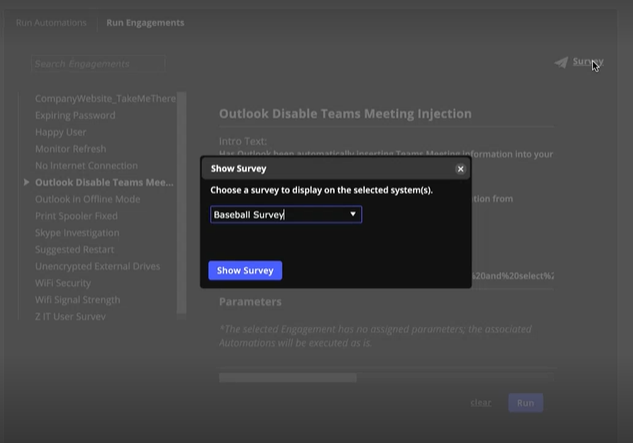
To create surveys, go to Configure > Tools > Surveys.
NOTE: All surveys that you create in Configure are listed in the Assist survey option.
Provide Access to Assist Tools
Administrators determine which users have access to the various tools in Assist.
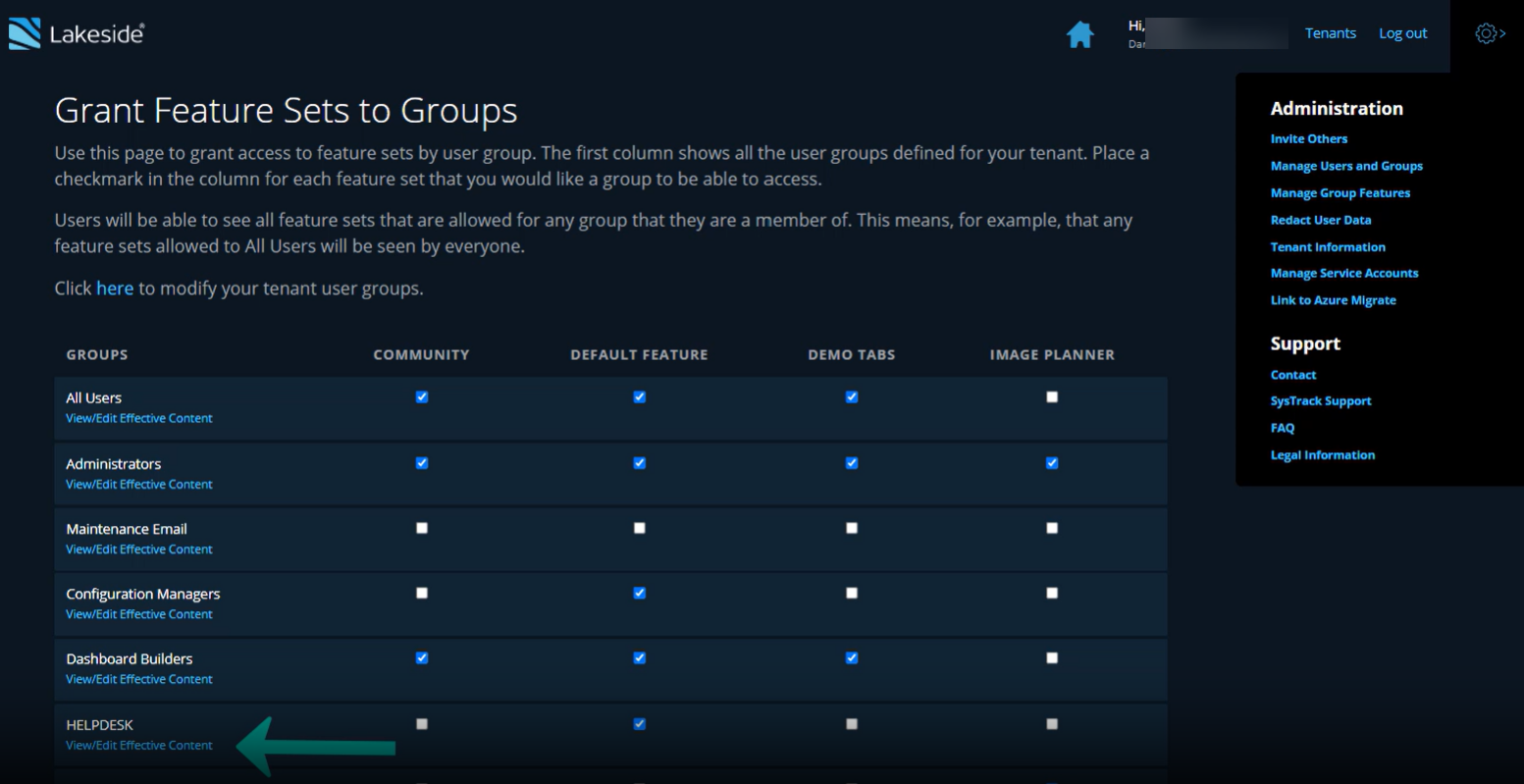
On the SysTrack Cloud home page, go to the Administration panel on the right and click Manage Group Features.
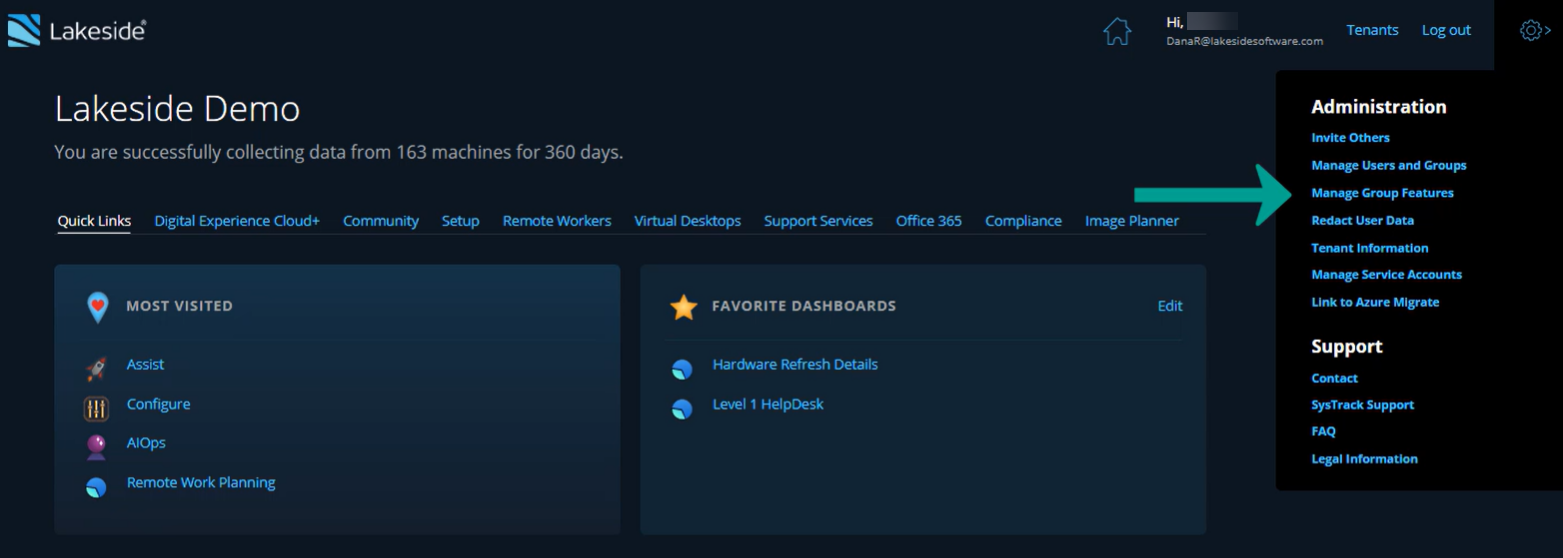
For the appropriate security group, click View/Edit Effective Content.
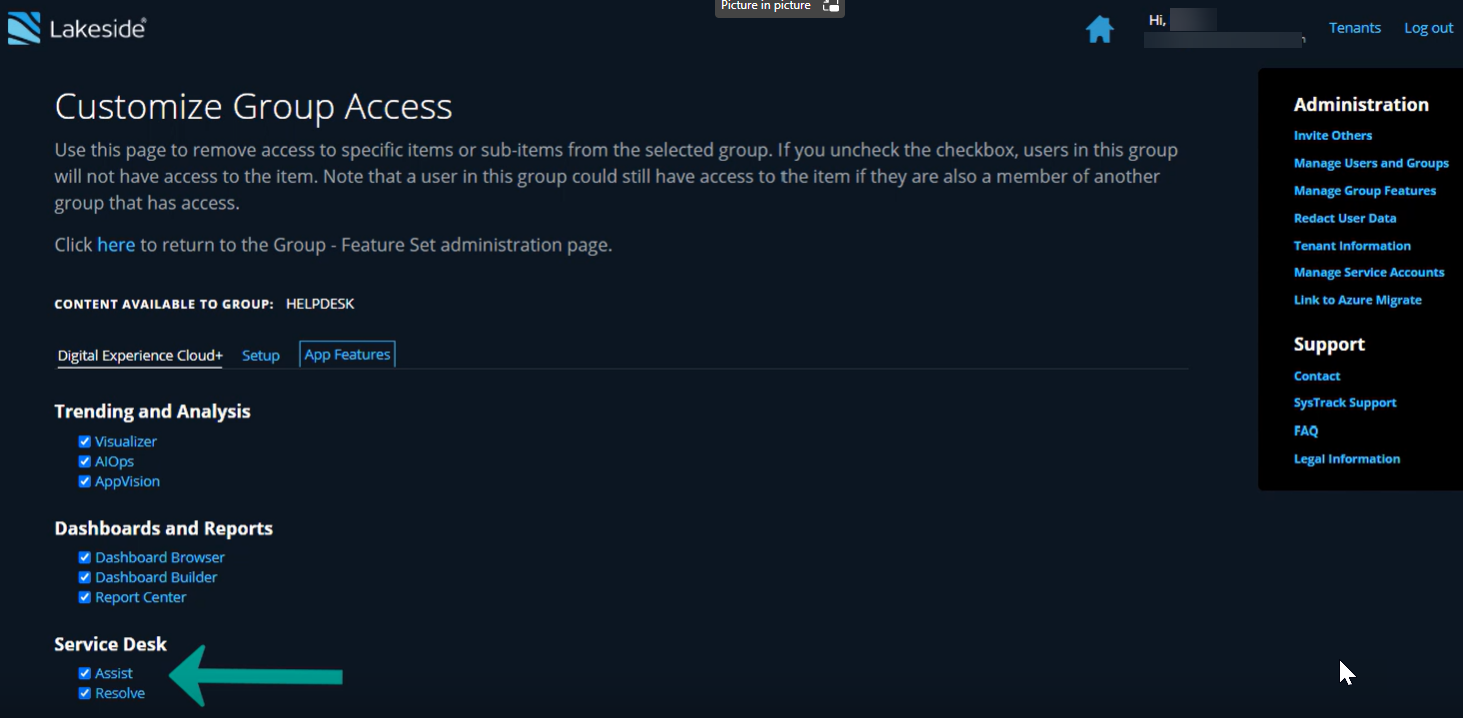
In Service Desk, verify that the Assist check box is selected.
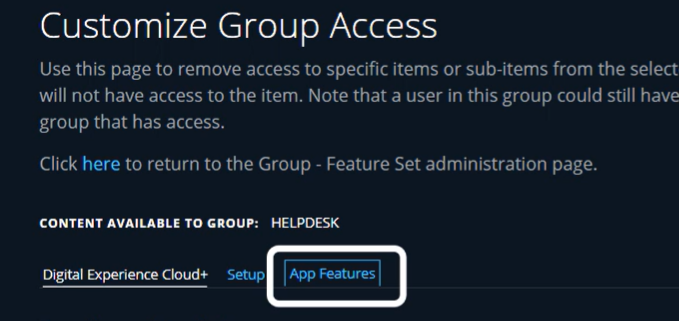
Go to the App Features tab.
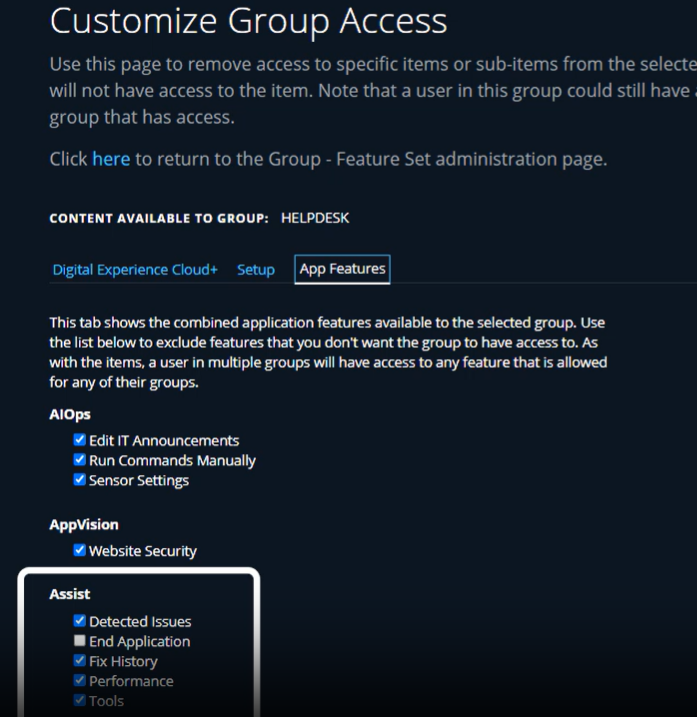
Select or clear the check boxes of the Assist features: Detected Issues, End Application, Fix History (the Automation History page), Performance, System Checklist, and Tools.
(Optional) To create a new security group, go to Settings > Administration > Manage Users and Groups.