Settings
On Configure's Administration page, the top section is Settings. It includes the following settings to control SysTrack's theme. It also includes settings for automatically removing non-connecting systems.
Follow these steps to select a display color theme for SysTrack and set a default configuration for new systems:
-
In the Theme field, select one of the following:
-
Dark (default)
-
Light
-
-
Select Save to apply your changes.
The selected color theme is also applied to the SysTrack launch homepage.
In the Set default configuration for new systems field, select a default configuration from the drop-down menu to apply to new systems. You can set Configurations on the Configurations page.
Auto Remove in Configure
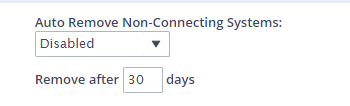
In large environments where systems are frequently re-imaged or upgraded, the process of identifying and removing the old system from the SysTrack environment may be time consuming. If you use the auto remove setting, it will reclaim the license for a system when it has not connected from the environment within the set period of time. This is disabled by default.
-
Go to System > Administration.
-
Disabled is the default.
-
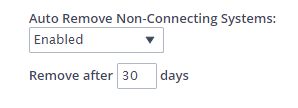
You can select the drop-down and select Enabled.
-
After the time period set, the system will be removed from the environment. However, the agent is not uninstalled. If the system is reconnected, it will connect and continue condensing data.
On This Page