Alarm Actions
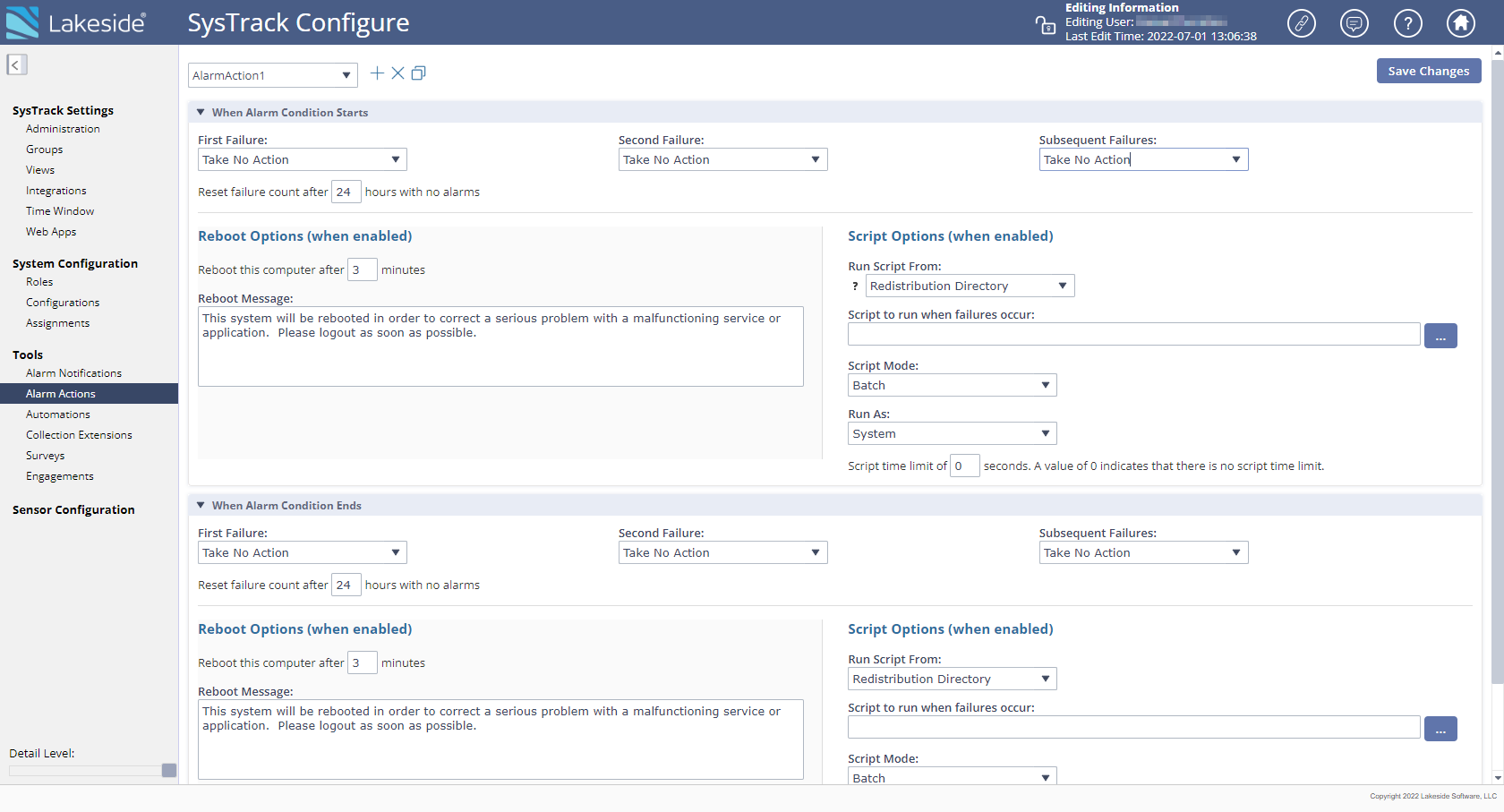
For each alarm notification profile, you can configure the actions to take when the alarm is triggered and when the alarm condition starts and when it has ended. Through the configured action profiles, the SysTrack Agent instructs the system on how to behave when failures occur. It also tracks the number of failures when they happen, allowing First Failure, Second Failure, and Subsequent Failures to be handled differently. Action profiles can be assigned to Alarms on the Roles page.
-
Select Alarm Actions from the navigation pane.
-
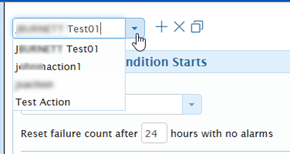
Select the action profile for which to configure actions from the drop down menu at the top of the page, or click the + icon to create a new profile.
- Complete the following sets of procedures as necessary for both the When Alarm Condition Starts, and When Alarm Condition Ends sections of the page.
-
Select the action to take for each failure.

Failure means different things for different alarms. For example, for the Services and Processes alarms a failure can indicate that monitored service, application, or process has failed. For other alarms, such as a Performance System alarm, a failure indicates that the configured threshold has been breached. The available actions are dependent on the type of alarm. Service alarms include a Kill process action whereas Performance System alarms do not. The available actions are as follows:
Action Description Take No Action No action is taken upon failure. Run Script This action is taken in conjunction with the Script Options settings on the page. If no script is specified then a script cannot be utilized and this option should not be selected. The script may be a set of instructions handed to the system triggering an alarm. Scripts can be in any language that can be handled by the Windows Scripting Host. For example, the service and event viewer logs may be copied and sent to a particular individual. Your network administrator may also require that certain actions take place that fall outside the available abilities of the SysTrack Agent and that can be executed only through script processing. Reboot the Computer This option will reboot the computer with the settings specified in the Reboot options section on the page. If desired, some processes and services may require a reboot of the system in order to launch them again. Some processes and services are only launched upon a boot. If desired, change the number of minutes after which a reboot should occur, and change the Reboot Message if desired. -
To configure Script Options:
- Select Run Script from one or more of the First Failure, Second Failure, and/or Subsequent Failures drop-down menus.
-
Select the Specified Directory - Select a local or network location to run the files. If you select this option, specify the Script to run when failures occur. The ellipsis button (...) can be used to display a dialog box to help locate the script.
NOTE: By default, the SysTrack Agent runs as the local system account. Therefore, SYSTEM from each child will need to have permissions to this location.
- Select a Script Mode from the drop-down menu. Scripts can be designed to run in either a Batch mode or an Interactive mode. A batch mode script has the lines of instruction that are carried out, one after another, until the script is complete. The interactive mode involves the use of direct action and input from the monitoring personnel to carry out the script items.
-
From the Run As drop-down menu, select one of the following options:
-
System - runs the script as a local system account, which means that the end-user will have no interaction with the script (usually preferred and recommended).
- Console User - assumes that user interaction is necessary (and Interactive mode would be selected).
-
Affected User - runs the script only for the affected user.
NOTE: Scripts in SysTrack are run via the command line. Default Windows behavior is to edit a PS1 file on execution. If you are running scripts via the PowerShell console, it is recommended that the following script be used: powershell.exe -executionpolicy remotesigned -file ".path\to\PowerShellScript.ps1
-
- Optionally, specify a Script time limit (in seconds). A value of 0 indicates that there is no script limit. This is the amount of time the SysTrack Agent waits before attempting to restart a service that has stopped.
- When you are done, click the Save Changes button at the top right of the page.
On This Page