You can enable quality of service for applications, URLs, and ports in the Quality of Service settings of a role. The quality of service management agent will only be applied to traffic over enabled ports based upon the current application or current URL. Traffic over disabled ports, or ports not defined, will be handled by Windows at a best efforts level, or the level that the particular application or service has defined for itself. Traffic over the defined enabled ports will have a quality of service as defined by the priority set in the Quality of Service settings. Any priority defined here is considered to be higher than the best efforts priority level.
Go to Configure > System Configuration > Roles.
Click the lock icon in the upper-right corner to unlock Configure for editing.
Select the role.
From the Additional Settings list, select Quality of Service.
Select Quality of Service Enabled. It is cleared by default.

To create a new quality of service entry for an Application, expand Applications and click the plus icon.
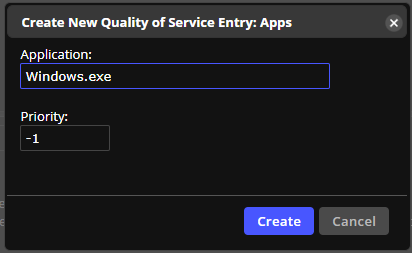
Enter the name of the application. Optionally change the priority and click Create. Priority values range from -1 to 63. The default is -1.
To delete an application, select the application, and click the X icon on the Applications pane.
To create a new quality of service entry for a URL, expand the URLs panel. Click the plus icon and enter the URL. Optionally change the priority and click Create. Priority values range from -1 to 63. The default is -1.
To delete a URL, select the URL, click the X icon on the URLs pane.
To create a new quality of service entry for a port, expand the Ports panel. Click the plus icon and enter the port. Enabled is already selected. Click Create. The role has no ports by default.
Click Save Changes on the top right of the page.
Systems that use the role apply the change the next time they read their configuration. To apply it right away, run Read Configuration on those systems. See Operations: Command Dashboard.
Troubleshoot Quality of Service
If traffic is not prioritized on a system, check these items:
Quality of Service Enabled is selected in the role.
For a port, the port entry is enabled.
The role is part of the configuration assigned to the system, and the system has read its configuration.