You can prevent the collection of various pieces of information, including personally identifiable information (PII) and personal data, by the SysTrack agent. SysTrack uses the term pseudoanonymization for this capability, also written as pseudonymization.
This document explains how to configure pseudoanonymization in SysTrack to protect the following sensitive information:
User Names
Website Details
User Information and Active Directory Details
User Names
User Name Options
SysTrack supports three pseudoanonymization options for user names:
Replace user name with Terminal ID.
Replace user name with MD5 hash (no lookup). This is irreversible.
Replace user name with MD5 hash (with lookup). Allows mapping back to the original username if needed.
Configure User Name Pseudoanonymization
Go to Configure > Roles.
Click the lock icon in the upper-right corner to obtain the Configure lock.
Select the role.
From the Additional Settings list, select Application Management.
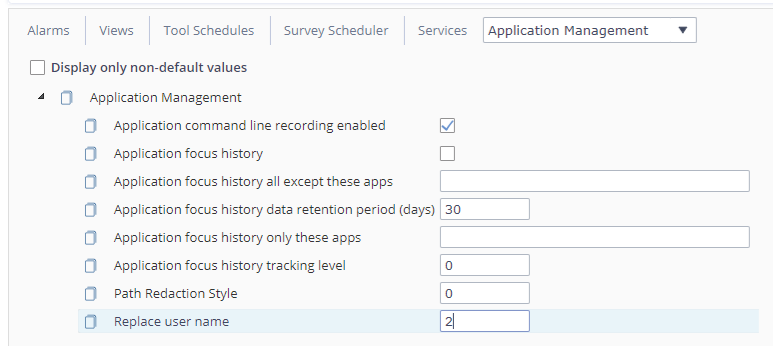
In the Replace user name field, enter one of these values. The default is 0 (Off).
1 for Terminal ID
2 for MD5 hash (no lookup)
3 for MD5 hash (with lookup)
WARNING: If you enter 2, SysTrack keeps no record of the original user names, so you can't map the collected data back to users. To keep that option, enter 3.
Click Save Changes.
NOTE: Make sure this role is included within the configuration assigned to the endpoints that need the pseudoanonymization.
The screenshot shows the option for MD5 hash with no lookup selected:
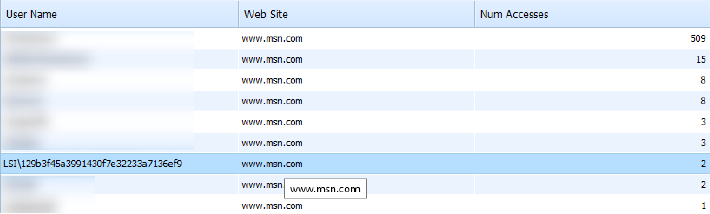
As a result, usernames are replaced with an MD5 value:
Website Details
By default, SysTrack collects (see Web Data Collection):
User site visits
Base site URL (for example, http://website.com)
Full URL (for example, http://website.com/page1)
Page title
Load time
Time spent on page and in focus
Process ID (PID) of the browser tab or session
Application invoking browser
Website Details Options
Based on your preferences or legal requirements, you can:
Disable all web tracking by turning off the plugin.
Limit collection to a subset of URLs using the Web Tracking List.
Configure Website Tracking
Go to Configure > Roles.
Click the lock icon in the upper-right corner to obtain the Configure lock.
Select the role.
From the Additional Settings list, select Web Management.
Configure tracking:
To disable all tracking, clear all checkboxes and remove URLs.
To limit tracking, specify allowed URLs in the Web Tracking List. For details, see Web Management.
Click Save Changes.
User Information and Active Directory Details
By default, SysTrack collects (see Privacy in Roles):
Local user information, such as full name, country code, and home directory.
Organizational unit (Active Directory) details, including:
Location
Department
Active Directory manager
Description fields
User Information Options
You can prevent the collection of local user information, Active Directory details, or both.
Stop Collection of User Information
Go to Configure > Roles.
Click the lock icon in the upper-right corner to obtain the Configure lock.
Select the role.
From the Additional Settings list, select Privacy.
In the User Collection group, clear the following checkboxes:
Collect Basic User Info to disable collection of local user information.
Collect Users Organizational Unit to disable collection of Active Directory details.
Click Save Changes.
NOTE: Clearing Collect Users Organizational Unit stops SysTrack AI integrations from matching users to their systems. See SysTrack AI Dependencies in Privacy