In SysTrack On-Premises, the Navigation Menu on the left side of the screen opens dashboards and other SysTrack applications, switches between servers, and opens help. It stays visible in all applications.
NOTE: This content is for the On-Premises 11.4 release and later.
The revised Navigation Menu creates a seamless workflow for users when navigating through SysTrack.

The Navigation Menu is available in both dark and light themes.
By default, applications open in the same tab. Right click on an Application icon for options to open in a new tab or window.
Dashboards
If you have marked certain dashboards as favorites, selecting Dashboards will open a flyout menu. This menu shows up to 10 of your most recently used favorite dashboards. If you do not have favorite dashboards, selecting Dashboards will take you to the Dashboard browser.

Applications
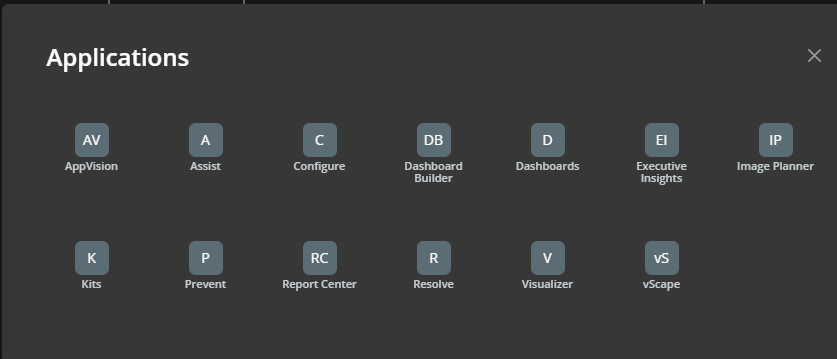
Click the All Apps icon to open the Applications dialog box. Select other SysTrack applications.
Switch Server
If you have access to multiple servers, you will see a Switch Server icon in the Navigation Menu.
Click Switch Server. The Select Server dialog box displays.
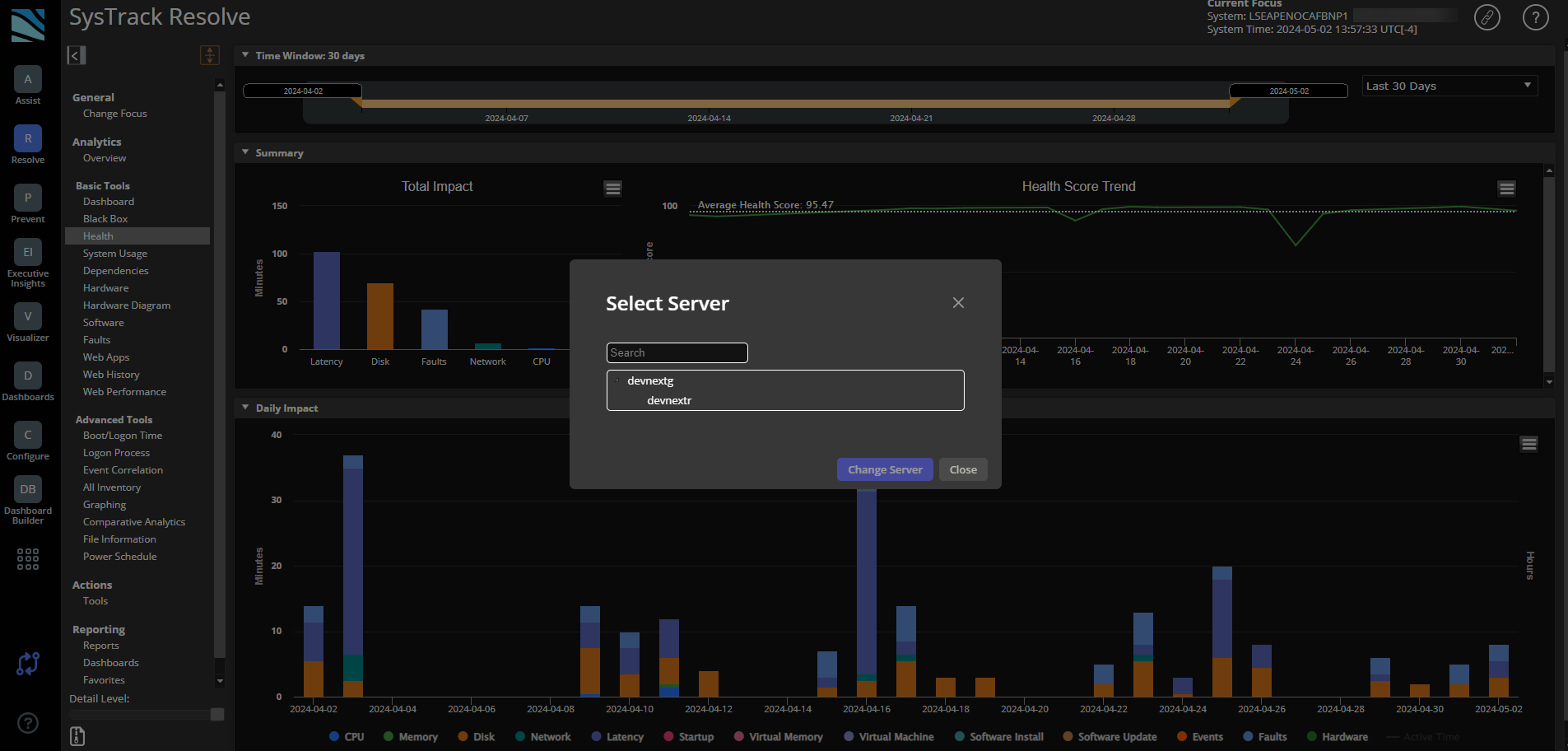
Select a server and click Change Server.
Help
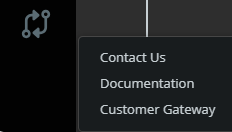
Click the question mark icon for the following:
Contact Lakeside software.
Access the documentation portal.
Access the SysTrack Community.