Unlock for Editing
Before you make changes to a role, configuration or anything else in SysTrack Configure, you must first secure the lock.
-
Click the lock icon on the top right of the page to move it to the open position to unlock Configure for editing.
NOTE: Only one user at a time can have Configure unlocked. Other users will be able to view pages and settings, but cannot make changes.
-
If Configure is already locked by another user, that user's name displays in the top right.

-
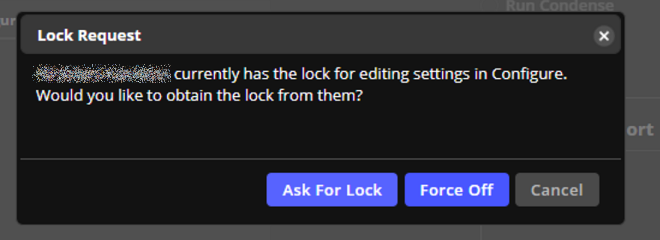
To request editing access from the current user, click the lock icon to display the Lock Request dialog box.
-
Click either Ask For Lock or Force Off.
Clicking Ask For Lock causes a message to display on the current user's screen. The user can then click the lock button in their SysTrack Configure window to release the lock, or ignore the request.
Clicking Force Off immediately locks the current user's access and unlocks it to allow the user requesting permission to gain editing control. Changes that the other user was making are stored until they again have the lock.
NOTE: If another user is using SysTrack Deploy, this will prevent another user from unlocking Configure. In this case, the user with control must exit Deploy before you can unlock Configure.
On This Page