Use the Deployment Tab
New versions of the SysTrack Agent are deployed to systems in the tree, either in stages or all at once, using the Deployment tab. A pause/play button allows you to pause deployment and start it again. If used, deployment stages are listed, and additional stages can be added. Overall deployment progress, threshold, and stage timeout are charted. Details of the current stage are shown on the right, including threshold percentage, success timeout, start criteria, and start time.
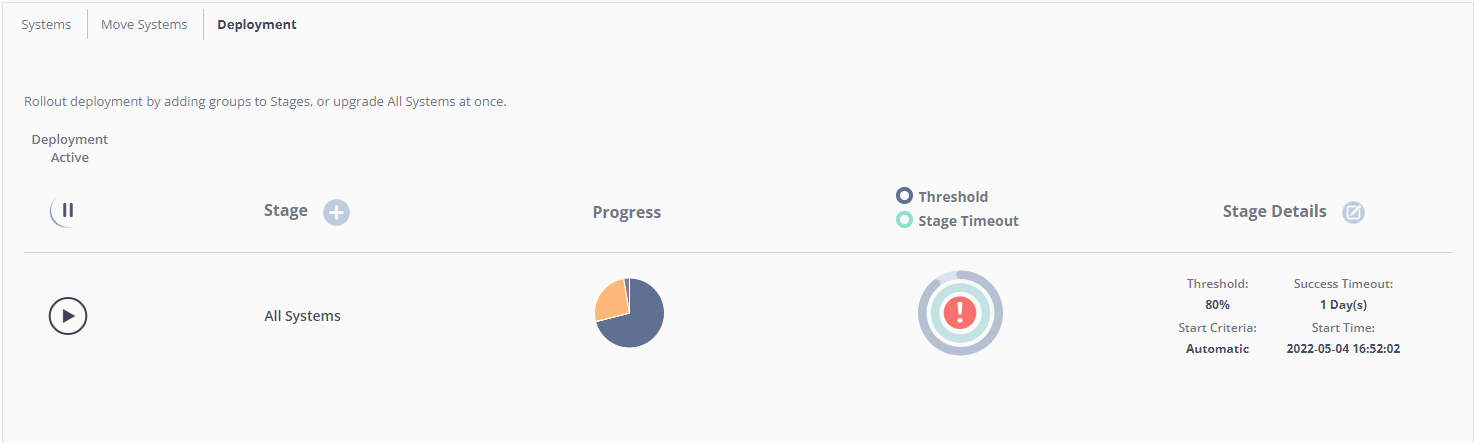
Add, Edit, or Remove Deployment Stages
- Click the lock icon on the top right of the page to unlock SysTrack Configure for editing.
-
Click the Stage + button to start adding a new stage or click the Stage Details button to edit an existing stage. The Stage Manager dialog appears showing the currently defined stages.

-
To add a new stage, click the + button in the lower left. A new stage is added prior to the Final Stage.
-
Choose a group from the Select Group drop-down on the left. Groups might include office systems, laptops, remote systems, virtual systems, and physical systems.
-
Choose Automatic or Manual from the Start Criteria drop-down. Each group with automatic start will run in the sequence shown after completion of the previously staged group. Stages set to manual start must be started from the Deployment tab.
-
In the Threshold field, enter the percentage of systems in the selected group that must complete deployment for the stage to be considered complete. The deployment will continue to all of the systems in that group, but the threshold is considered the minimum completed to allow the next deployment group to start.
-
In the Success Timeout field, enter the maximum number of days allowed to reach the specified threshold for that stage. If the threshold is not reached within the success timeout period, the deployment process does not continue to the next stage.
-
To remove one of the stages from the scheduled deployments, click the trash can icon on the right.
-
When the desired stages have been established, click the Save button. The stages are displayed with the progress, threshold, and timeout for each.
-
Click the lock icon on the top right of the page to end your editing session and lock SysTrack Configure.
On This Page