NOTE: This documentation was written based on Microsoft Teams documentation at the time of release. Check Teams for the most current documentation.
Send SysTrack sensor notifications to a Microsoft Teams channel. In Teams, you create a workflow that receives webhook requests and posts them to a channel. The workflow gives you a unique URL for the channel. In SysTrack, you add this URL as a webhook recipient. SysTrack sends POST requests with a JSON body to the URL, and Teams posts the message as a card in the channel.
Prerequisites
A Microsoft Teams channel for the notifications, and access to Workflows in Teams.
In SysTrack, Configure unlocked for editing. See Unlock for Editing.
Limitations
The message size limit is 28 KB. When the size exceeds 28 KB, you receive an error. For more information, see Limits and specifications for Microsoft Teams.
Create Incoming Webhooks with Workflows for Teams
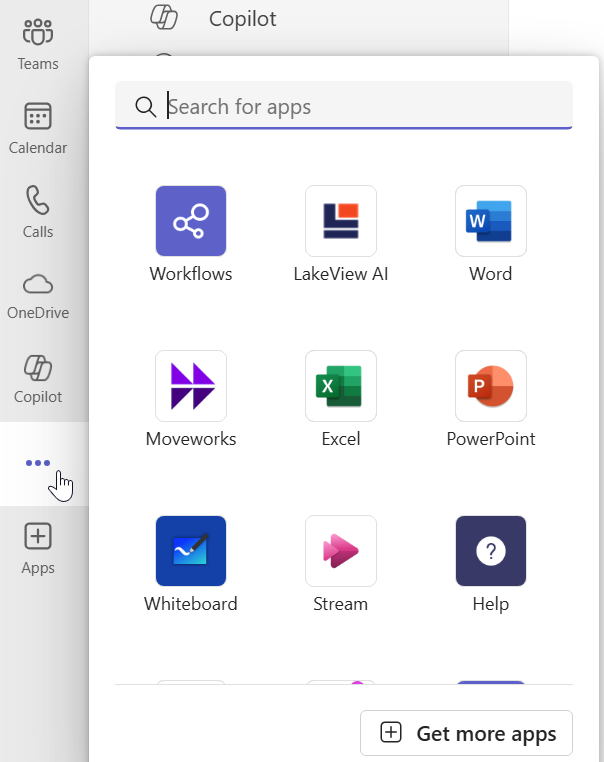
In Teams, on the left side, select View more apps and then click Workflows.
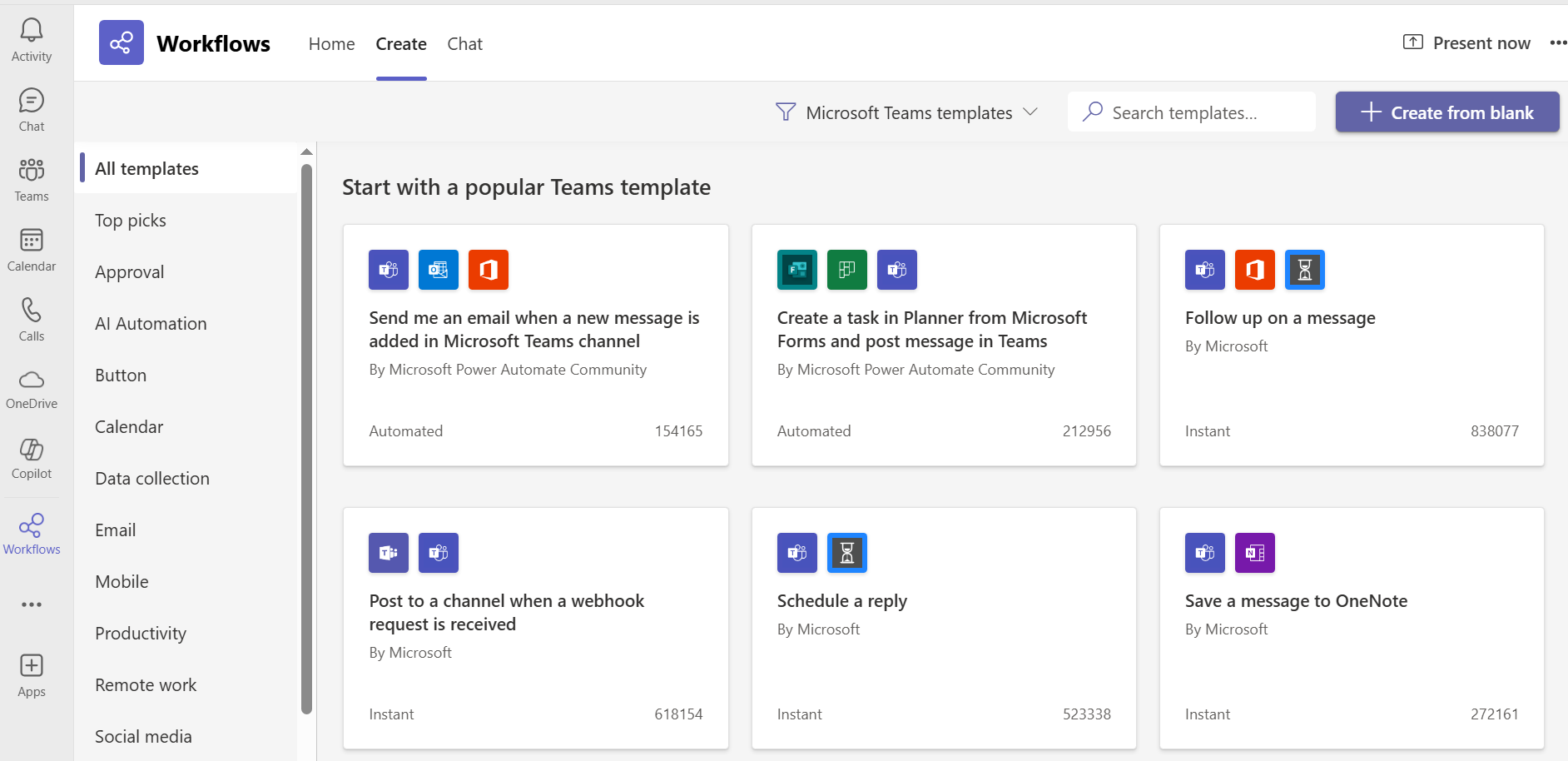
Click Create.
Select the Post to a channel when a webhook request is received template.
Click Next.
Configure the channel you will use for webhooks and click Create flow.
Copy and save the unique webhook URL.
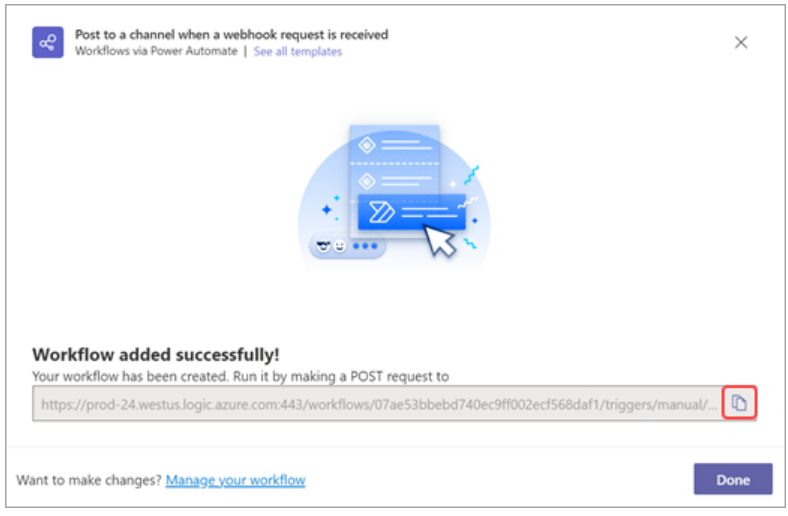
Click Done. For more information, see Create incoming webhooks with Workflows for Microsoft Teams.
Use the unique webhook URL from step 6 to create a webhook recipient in Configure > Sensor Configuration > Notifications, on the Recipients tab. Use POST and the template in Webhook Body Template for Teams, below. See Webhook Support for Sensor Notifications.
Add the recipient to a sensor notification. See Manage Sensor Notifications.
To check the setup, wait until the sensor notification activates. The card appears in the Teams channel.
Webhook Body Template for Teams
Copy and paste this content into Body in the Add New Recipient dialog box, and edit it as needed. For the variables you can use, see Sensor Notification Webhook Body Templates.
TIP: For Teams, you need the URL you generated, it must use the POST method, and it needs a body like the one shown below.
{
	"type":"message",
	"attachments": [
		{
			"contentType":"application/vnd.microsoft.card.adaptive",
			"contentUrl":null,
			"content": {
				"type": "AdaptiveCard",
				"$schema": "http://adaptivecards.io/schemas/adaptive-card.json",
				"version": "1.5",
				"msteams": {
					"width": "Full"
				},
				"body": [
					{
						"type": "TextBlock",
						"size": "Large",
						"weight": "Bolder",
						"text": "@{notificationName}"
					},
					{
						"type": "TextBlock",
						"size": "Small",
						"weight": "Bolder",
						"text": "Activated @{activationTime}",
						"isSubtle": true,
						"spacing": "None"
					},
					{
						"type": "Table",
						"columns": [
							{
								"width": "90px"
							},
							{
								"width": 1
							}
						],
						"rows": [
							{
								"type": "TableRow",
								"cells": [
									{
										"type": "TableCell",
										"items": [
											{
												"type": "TextBlock",
												"text": "Sensor(s)"
											}
										]
							},
							{
								"type": "TableCell",
								"items": [
									{
										"type": "TextBlock",
										"text": "@{sensorNamesUnquoted}",
										"weight": "Default",
										"wrap": true
									}
								]
							}
						]
					},
					{
						"type": "TableRow",
						"cells": [
							{
								"type": "TableCell",
								"items": [
									{
										"type": "TextBlock",
										"text": "Group",
										"weight": "Bolder"
									}
								]
							},
							{
								"type": "TableCell",
								"items": [
								{
									"type": "TextBlock",
									"text": "@{groupName}",
									"wrap": true
								}
							]
						}
					]
				},
				{
					"type": "TableRow",
					"cells": [
						{
							"type": "TableCell",
							"items": [
								{
									"type": "TextBlock",
									"text": "Activation",
									"weight": "Bolder"
								}
							]
						},
						{
							"type": "TableCell",
							"items": [
								{
									"type": "TextBlock",
									"text": "@{activationThresholdText}",
									"wrap": true
								}
							]
						}
					]
				}
				],
				"showGridLines": false
			},
			{
				"type": "TextBlock",
				"text": "@{notificationDescription}",
				"wrap": true,
				"isSubtle": true
			}
		],
		"actions": [
			{
				"type": "Action.OpenUrl",
				"title": "Learn More in SysTrack",
				"url": "@{notificationActivationDetailsURL}",
				"role": "button"
			}
		]
	}
}
]
}